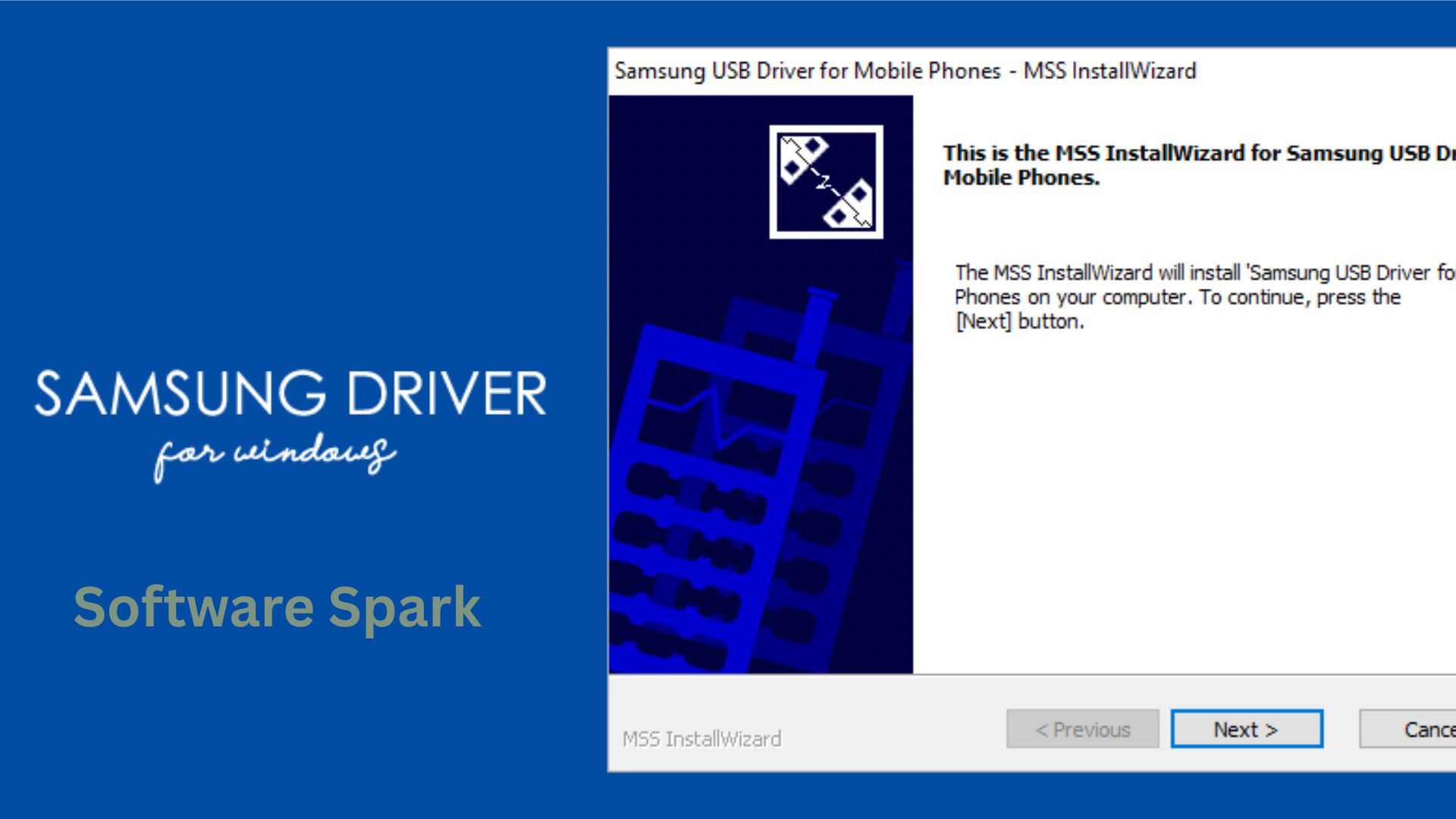
Samsung USB Driver – Connect Your Galaxy Phone to Windows PC
You plug your Samsung Galaxy phone into your Windows computer, expecting to see your photos and files pop up. Instead, you hear a chime, but nothing appears. Or worse, you see an error that says “Device not recognized.” This frustrating experience is incredibly common, and the solution is usually very simple: you need the official Samsung USB Driver.
Unlike iPhones, which use a universal Apple driver, Android phones—especially Samsung devices—often require a specific driver package to enable advanced features like file transfer (MTP), firmware updates (Odin), and developer options like ADB debugging. Windows includes basic generic drivers, but they often fail to unlock the full functionality of your Galaxy device.
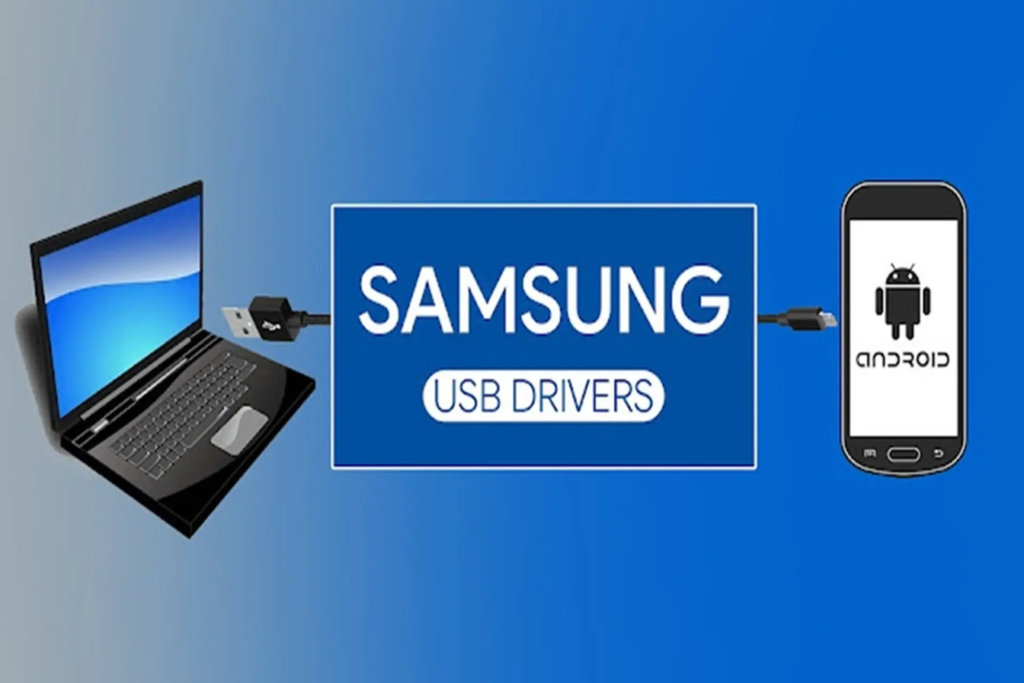
The Samsung USB Driver is a small, free, and official piece of software provided by Samsung Electronics. It acts as a translator between your Windows operating system and your Android phone. Without it, your PC might charge your phone but refuse to let you move files or flash software.
In this guide, we will explain exactly what this driver does, how to install it correctly, and how to troubleshoot common connection problems. Whether you are a casual user backing up photos or a tech enthusiast customizing your phone, this article is for you.
Software Overview
The Samsung USB Driver for Mobile Phones is an official Windows device driver developed and distributed by Samsung Electronics. It is not a full software suite like Samsung Smart Switch, nor is it an app you install on your phone. Instead, it is a low-level software component that installs on your PC to enable communication between Windows and any Samsung Android device (Galaxy S series, Note series, A series, Z Fold/Flip, and even older models).
The driver supports a wide range of connection modes and protocols:
- MTP (Media Transfer Protocol): For transferring photos, music, and videos.
- PTP (Picture Transfer Protocol): For cameras and specialized photo transfers.
- ADB (Android Debug Bridge): For developers and advanced users to send commands, install apps, or access the shell.
- Download / Odin Mode: For flashing official firmware updates or custom recoveries using Samsung’s Odin tool.
- RNDIS (Ethernet over USB): Used for certain network debugging scenarios.
Once installed, the driver runs silently in the background. You will not see a user interface or a system tray icon. Instead, it simply allows Windows to correctly identify your Samsung phone when you plug it in via USB cable.
The driver is completely free, is digitally signed by Samsung (so no security warnings), and is available for Windows 7, 8, 10, and 11. It is essential for anyone who wants a reliable, stable connection between their PC and Galaxy device.
Main Features with Detailed Descriptions
1. Official Samsung Digital Signature
The most critical feature of this driver is its authenticity. It carries a digital certificate from Samsung Electronics. This means two things:
- Windows will trust the driver immediately. You will not see scary red warnings about “unsigned drivers.”
- The driver is safe. It contains no malware, no adware, and no third-party bundles. It is a clean, professional driver package.
2. Enables MTP File Transfer (Media Transfer Protocol)
When you connect your Samsung phone to a Windows PC, you expect to see the phone’s internal storage appear as a drive in File Explorer. MTP is the protocol that makes this possible. The Samsung USB driver ensures that MTP works correctly.
After installing the driver, you will see your phone listed as a portable device (e.g., “Samsung Galaxy S23”). You can then drag and drop files, photos, music, and videos in both directions—from PC to phone and phone to PC.
3. Supports ADB (Android Debug Bridge) for Developers
For developers, hobbyists, or anyone who uses tools like ADB or Fastboot, this driver is mandatory. ADB allows you to send shell commands from your PC to your Android device over USB.
With the driver installed, you can:
- Install and uninstall apps directly from your PC command line.
- Access a Linux shell on your phone (using
adb shell). - Take screenshots, record video, and access system logs.
- Sideload app updates.
- Unlock bootloaders and manage custom recoveries (in combination with Odin).
4. Required for Odin (Firmware Flashing)
Samsung phones do not use the standard Fastboot protocol. Instead, they use a proprietary mode called “Download Mode” (or Odin Mode). The tool used to flash official Samsung firmware (in .tar.md5 format) is called Odin.
Odin only works if the Windows USB driver is correctly installed. Without it, Odin will not detect your phone, and you cannot:
- Update to a newer official firmware manually.
- Downgrade to an older firmware.
- Recover a bricked phone.
- Install custom recoveries (like TWRP on older Samsung models).
5. Zero User Interface (Silent Operation)
Unlike printer drivers that add system tray icons or update checkers, the Samsung USB driver is completely invisible. After installation, you will not find a shortcut on your desktop or a program in your Start Menu. This is by design. The driver runs as a Windows service and a set of INF files. It does its job and then stays out of your way. This means no pop-ups, no ads, and no background processes consuming your CPU or RAM.
6. Broad Compatibility Across Windows Versions
The driver supports a wide range of Windows operating systems, both old and new:
- Windows 11: Fully compatible.
- Windows 10: Fully compatible (both 32-bit and 64-bit).
- Windows 8 / 8.1: Fully compatible.
- Windows 7: Fully compatible (though requires manual driver installation sometimes).
- Windows Vista and XP: Support is limited; newer Samsung phones may not work on these ancient OSes.
7. Supports Both 32-bit and 64-bit Architectures
The driver installer automatically detects whether your Windows system is 32-bit (x86) or 64-bit (x64) and installs the correct version. You do not need to choose. This ensures compatibility with older laptops (32-bit) and modern gaming PCs (64-bit) alike.
8. Facilitates USB Tethering (Internet Sharing)
When you enable “USB tethering” on your Samsung phone (under Settings > Connections > Mobile Hotspot and Tethering), the Samsung USB driver allows Windows to recognize the phone as a network adapter. This means you can share your phone’s mobile internet connection with your PC via the USB cable. This is extremely useful when Wi-Fi is unavailable.
System Requirements
The driver itself has very low requirements. However, your Samsung phone must meet its own requirements (e.g., Android OS version).
| Requirement Category | Minimum Specification |
|---|---|
| Operating System | Windows 7, 8, 8.1, 10, or 11 (32-bit or 64-bit) |
| Processor (CPU) | 1.0 GHz or faster (any processor) |
| Memory (RAM) | 512 MB (any modern PC exceeds this) |
| Storage Space | 50 MB of free space |
| USB Port | USB 2.0 or USB 3.0 (Type-A or Type-C) |
| Samsung Phone | Any Samsung Galaxy phone or tablet (Android 4.0+) |
| Cable | A high-quality USB data cable (charging-only cables will not work for data) |
Note: Windows 11 and Windows 10 automatically download drivers via Windows Update. However, manual installation is still recommended for ADB and Odin users.
How to Install the Samsung USB Driver (Step-by-Step)
Installing the Samsung USB driver is straightforward. Follow these steps carefully.
Step 1: Download the Driver
Go to a trusted download page (such as your website or CNET). Click the “Download Now” button. Save the .exe file (typically named Samsung_USB_Driver_for_Mobile_Phones.exe) to your “Downloads” folder.
Step 2: Disconnect Your Samsung Phone
Important: Disconnect any Samsung phones from your PC before installing the driver. This prevents conflicts during installation.
Step 3: Close Other Programs
Close any programs that might interfere, such as Samsung Smart Switch, Android Studio, or any running emulators.
Step 4: Run the Installer as Administrator
Right-click the downloaded .exe file and select “Run as Administrator.” This ensures the driver installs correctly for all users.
Step 5: Allow User Account Control
Windows may ask, “Do you want to allow this app to make changes?” Click “Yes.” The Samsung driver is safe.
Step 6: Accept the License Agreement
The setup wizard will open. Read the license agreement (standard Samsung terms). Click “Next” or “I Agree” to continue.
Step 7: Choose Installation Folder (Optional)
You can keep the default folder (usually C:\Program Files\Samsung\USB Drivers). Click “Install.”
Step 8: Wait for Installation
The installer will copy files to your system. This takes about 15-30 seconds. You may see a command prompt window flash briefly. This is normal.
Step 9: Click “Finish”
Once the installation completes, click “Finish.” You do not need to restart your computer, but a restart is recommended if you experience issues later.
Step 10: Connect Your Samsung Phone
Plug your Samsung phone into your PC using a data USB cable (not a charge-only cable). Unlock your phone. You may see a notification on your phone saying “USB charging” or “File transfer.” Tap it and select “File Transfer” or “MTP.”
Step 11: Verify the Installation
Open Windows File Explorer. Look on the left sidebar under “This PC.” You should see your Samsung phone listed as a portable device. Double-click it. You should see your phone’s internal storage and SD card folders. If you see them, the driver is working perfectly.
Pros and Cons Table
The Samsung USB driver is essential but not perfect. Here is an honest evaluation.
| Pros (Advantages) | Cons (Disadvantages) |
|---|---|
| Completely free: No cost, no trial, no subscription. | No user interface: Cannot see driver version easily; no “uninstall” shortcut. |
| Official Samsung signature: Safe, stable, and trustworthy. | Requires manual uninstall: Must go to “Apps & features” or Device Manager. |
| Enables MTP file transfer: Drag and drop files to/from your phone. | Does not support all models instantly: Very new phones may need a driver update. |
| Supports ADB and Odin: Essential for developers and enthusiasts. | Windows Update may overwrite it: Occasionally, Windows replaces it with a generic driver. |
| Works on Windows 7 to 11: Broad OS compatibility. | No Mac or Linux version: Not applicable (those OSes use different drivers). |
| Silent background operation: No ads, no pop-ups, no bloatware. | Does not include Smart Switch: Separate download required for backup software. |
| Supports USB tethering: Share phone internet with your PC. | Cable quality matters: A poor cable will cause “device not recognized” errors even with the driver installed. |
Practical Use Cases and Benefits
Use Case 1: The Casual User Backing Up Photos
Scenario: You have a Samsung Galaxy A54. Your phone storage is full. You want to move 500 photos and videos to your Windows 11 laptop to free up space.
Benefit: You install the Samsung USB driver. You connect your phone, select “File Transfer,” and open File Explorer. You drag the “DCIM” folder to your laptop desktop. In two minutes, your photos are backed up, and your phone has free space. No cloud subscriptions needed.
Use Case 2: The Android Developer Testing Apps
Scenario: You are developing an Android app in Android Studio. You need to test it on a physical Samsung S24 device, not just an emulator.
Benefit: After installing the Samsung USB driver, you enable “Developer Options” and “USB Debugging” on your phone. Android Studio automatically detects your S24. You click “Run.” The app installs directly to your phone in seconds. No wireless workarounds are needed.
Use Case 3: The Enthusiast Flashing Firmware with Odin
Scenario: You own a Samsung Galaxy S22. A new official firmware update is released, but it is not yet available over the air (OTA) in your country. You download the firmware file from a trusted source.
Benefit: The Samsung USB driver allows Odin (the flashing tool) to detect your phone in Download Mode. You load the firmware file, click “Start,” and within 5 minutes, your phone is updated to the latest version. This process only works because the driver is installed.
Use Case 4: The Traveler Using USB Tethering
Scenario: You are staying in a hotel with broken Wi-Fi. However, your Samsung phone has a strong 5G signal. You need your laptop to work.
Benefit: You plug your phone into your laptop via USB. On your phone, you go to Settings > Connections > Mobile Hotspot and Tethering > USB Tethering. Enable it. The Samsung USB driver makes your laptop recognize the phone as a network adapter. Your laptop now uses your phone’s internet. You finish your work without expensive hotel Wi-Fi.
Use Case 5: The IT Technician Fixing a “Dead” Phone
Scenario: A friend brings you a Samsung phone that is stuck on the “Samsung logo” (boot loop). It will not boot normally.
Benefit: You boot the phone into “Download Mode” (Volume Down + Power). You connect it to your PC. Because the Samsung USB driver is installed, your PC detects the phone even though it is not fully booted. You use Odin to flash the stock firmware, and the phone starts working again. The driver saved the phone from being thrown away.
Frequently Asked Questions (FAQ)
Q1: Is the Samsung USB driver the same as Samsung Smart Switch?
No. Samsung Smart Switch is a full software application used for backing up your phone, transferring data to a new phone, and restoring backups. The Samsung USB driver is a low-level driver that enables your PC to communicate with your phone. Smart Switch actually requires the USB driver to be installed first. You need the driver; you use Smart Switch optionally.
Q2: My Windows 11 PC did not ask me to install a driver. Is it already installed?
Windows 11 and Windows 10 automatically download many common drivers via Windows Update. When you first plug in a Samsung phone, Windows may silently install a basic driver. However, for ADB, Odin, and reliable MTP, you should still manually install the official Samsung driver from your website. The Windows Update version is often generic and may cause “device not recognized” errors.
Q3: Why does my PC charge my phone but not see my files?
This is almost always one of three issues:
- Cable problem: You are using a “charge-only” cable. These cables have the data wires missing. Try a different USB cable, ideally the one that came with your phone.
- USB mode: On your phone, pull down the notification shade. Tap the USB notification and select “File Transfer” or “MTP.” The default is often “Charging only.”
- Driver issue: The driver is not installed or is corrupted. Reinstall the Samsung USB driver using the steps above.
Q4: Does this driver work with non-Samsung Android phones?
No. The Samsung USB driver is specifically for Samsung Galaxy devices. It will not work with Google Pixel, OnePlus, Xiaomi, Motorola, or LG phones. Those manufacturers have their own USB drivers. However, for basic MTP file transfer, Windows generic drivers often work with those brands. For ADB, you would use the “Google USB Driver” (included in Android Studio).
Q5: How do I completely uninstall the Samsung USB driver?
To remove it fully:
- Go to Settings > Apps > Installed apps (Windows 10/11).
- Search for “Samsung USB Driver for Mobile Phones.”
- Click Uninstall.
- Also check Device Manager: Right-click the Start button > Device Manager > Expand “Universal Serial Bus devices” or “Portable Devices.” If you see “Samsung Mobile USB Device,” right-click it and select “Uninstall device” and check “Delete driver software for this device.”
- Restart your PC.
Q6: I installed the driver, but Odin still says “Added!” and then fails. Why?
Odin is very picky. Try these steps:
- Use a USB 2.0 port (blue USB 3.0 ports sometimes cause issues). Use a port directly on your motherboard (not a front panel or hub).
- Run Odin as Administrator (right-click > Run as Administrator).
- Use the original Samsung USB cable.
- Reboot your phone into Download Mode again.
- Reinstall the Samsung USB driver (uninstall first, then reinstall).
- Try a different version of Odin (e.g., Odin3 v3.14.4).
Q7: Can I use this driver to unlock my phone’s bootloader?
No. The driver only enables communication. Unlocking the bootloader is a separate process that requires enabling “OEM Unlocking” in Developer Options on your phone (Samsung phones often have restrictions on Snapdragon models). The driver is necessary for the unlocking process, but it does not unlock anything by itself.
Q8: Does the driver work with Samsung tablets (Galaxy Tab series)?
Yes. The Samsung USB driver works with all Samsung Android devices: Galaxy S, Note, A, Z Fold/Flip, and Galaxy Tab tablets. The driver is device-agnostic; it works with any Samsung Android device that uses MTP, ADB, or Download Mode.
Q9: My phone is recognized, but file transfer is extremely slow. What is wrong?
Slow transfer speeds are usually not the driver’s fault. Check:
- USB port: You are using USB 2.0 instead of USB 3.0. Use a blue USB 3.0 port for faster speeds.
- Cable quality: A poor cable can drop to USB 1.1 speeds. Use the original Samsung cable.
- Phone storage type: Old phones with eMMC storage are slower than newer UFS storage.
- Small files: Transferring thousands of small files (e.g., 2KB each) is always slow due to file system overhead. Zip them first.
Q10: Why do I see “Samsung Mobile USB Composite Device” in Device Manager?
That is correct. “Samsung Mobile USB Composite Device” is the official name of the installed driver in Device Manager. It means the driver is working. Do not uninstall it. You should also see it under “Universal Serial Bus devices.” If you see a yellow exclamation mark, the driver failed to install. Right-click it, select “Update driver,” and point it to the Samsung driver folder.
Conclusion
The Samsung USB Driver is a small but mighty piece of software. It is the unsung hero that enables your Windows PC to talk to your Galaxy phone. Without it, you are limited to charging your phone or, at best, using clunky wireless workarounds. With it, you gain the speed and reliability of a wired USB connection for file transfers, development, tethering, and system recovery.
For the average user, installing this driver solves the frustrating problem of “My computer won’t see my phone.” For the power user, it unlocks the full potential of ADB and Odin. For the professional, it ensures reliable testing and deployment.
The driver is free, safe, and easy to install. It does its job silently and then gets out of your way. It does not spam you with notifications, consume your battery, or sell your data. It is simply a tool—a very effective one.
If you own a Samsung Galaxy phone or tablet, installing the Samsung USB driver on your Windows PC should be one of the first things you do. It will save you hours of frustration and make every future USB connection smooth and predictable.
Download the driver today, follow the simple installation steps, and finally enjoy a reliable connection between your Galaxy and your PC.



