ComboTIFF for Windows – The Ultimate Batch TIFF Merger and Page Extractor
Master Multi-Page TIFF Files with This Powerful Batch Image Tool
Managing multiple images and scanned documents can quickly become a tedious and time-consuming task, especially when you need to combine them into a single, cohesive file. ComboTIFF for Windows addresses this exact problem by offering a dedicated and efficient batch image processing solution. This specialized software allows users to merge a wide variety of image formats into a single multi-page TIFF document or, conversely, extract specific pages from a large TIFF file into separate images . Whether you are a busy office professional needing to consolidate contracts, a photographer looking to create digital contact sheets, or anyone in between, this utility provides an intuitive and streamlined workflow. It’s a powerful tool designed to save you significant time and effort. Let’s explore what makes ComboTIFF a must-have utility for handling TIFF files.
What is ComboTIFF for Windows?
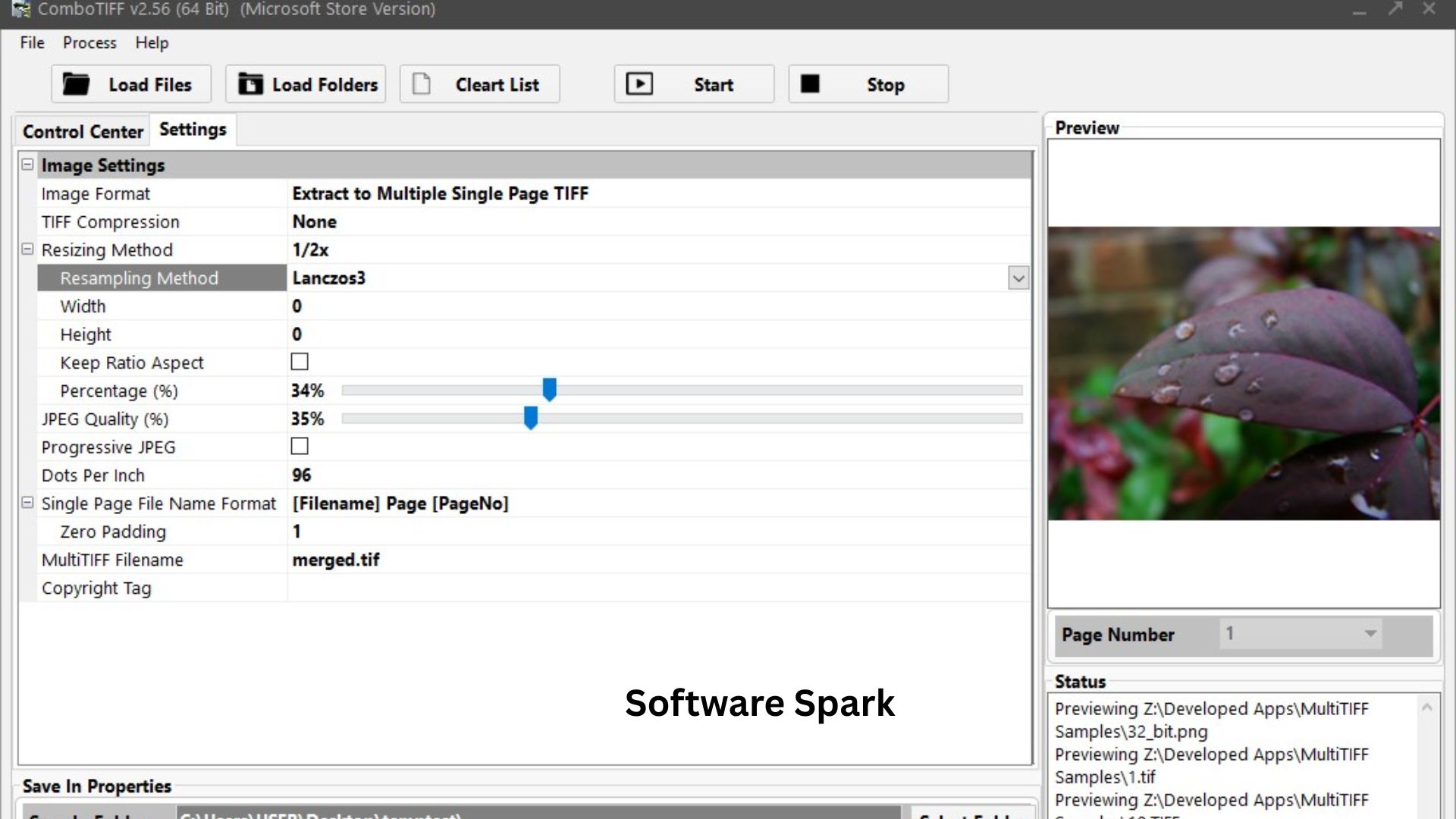
ComboTIFF for Windows is a robust batch image processing application designed to give users complete and effortless control over their TIFF (Tagged Image File Format) files. Its core functionalities revolve around two primary operations: merging and extracting . Users can take a collection of images in formats like TIFF, JPG, and PNG and combine them into a single, multi-page TIFF document. Conversely, it can take a multi-page TIFF file and extract all or specific pages into individual files, saving them as TIFF, JPG, or PNG . The software has been completely redesigned and reengineered for Windows, with a particular focus on taking full advantage of 64-bit operating systems . This rewrite ensures not only a modern, Windows-centric interface but also significantly enhanced performance and stability, especially when processing large image files.
Key Features of ComboTIFF
Seamless Merging of Diverse Image Formats
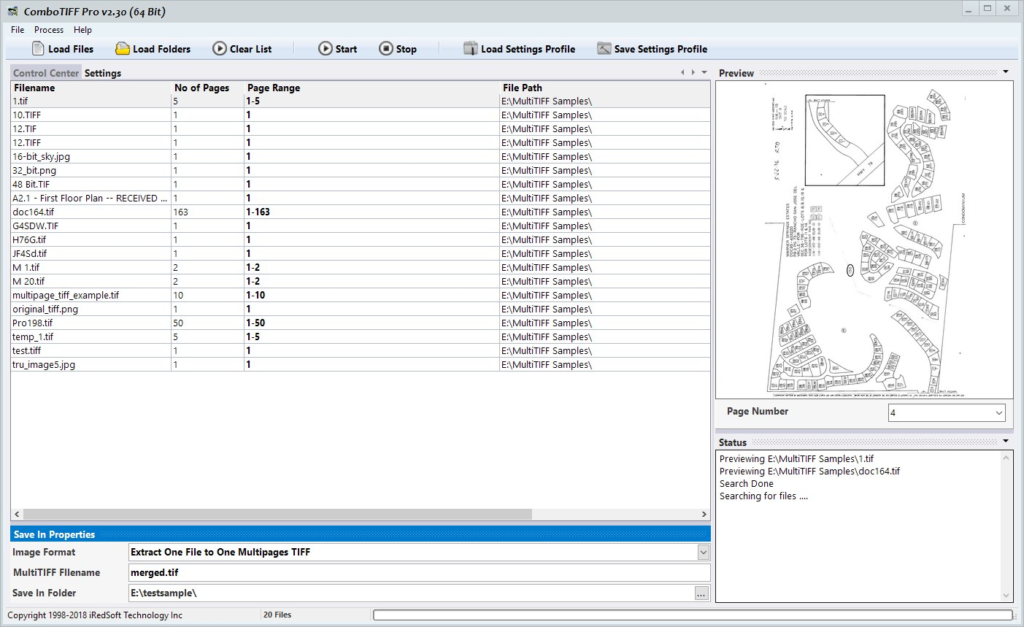
The most standout feature of ComboTIFF is its ability to seamlessly merge various image formats—including JPG, PNG, and TIFF—into a single, streamlined multi-page TIFF file . This is particularly useful for compiling a series of scanned documents, combining multiple images into a single report, or consolidating a series of photographs for archival purposes. The process is straightforward: you simply add your files, order them as needed, and initiate the batch process, and ComboTIFF handles the rest.
Precise Page Extraction and Conversion
On the other end of the spectrum, ComboTIFF excels at extracting pages from a multi-page TIFF document . You can easily break down a large file into individual pages, which can be saved as TIFF, JPEG, or PNG files. This is an invaluable feature for sharing specific pages from a large document, repurposing content for presentations, or converting a TIFF document into a more universally accessible format like JPEG .
Advanced Image Resizing and Optimization
The software offers extensive control over the final output through advanced image resizing and compression options. Users can resize images by ratio, percentage, or exact pixel dimensions, ensuring the final files meet specific size requirements for printing, web use, or archival purposes . Furthermore, ComboTIFF supports a comprehensive range of TIFF compression methods, including JPEG, LZW, Packbits, and CCITT G3 and G4 . This variety allows you to fine-tune the balance between file size and image quality, optimizing files for storage, sharing, or specific applications.
User-Friendly Interface and Batch Processing
ComboTIFF is engineered for professionals who need to process multiple files efficiently, making batch processing a core strength. The software is designed with a clean, high-contrast theme and a two-section layout: one for managing your file list and another for adjusting output settings . You can drag and drop files directly into the interface, and the integrated status field provides clear, real-time updates on the processing progress . This intuitive design ensures a minimal learning curve, allowing you to start processing images immediately.
Optimized for 64-bit Performance
The latest version of ComboTIFF for Windows is a 64-bit application, which is a significant advantage. This means it is specifically optimized to take advantage of the larger memory addressing available in 64-bit editions of Windows . The result is a much smoother and faster experience, especially when working with larger files. This optimization allows the software to handle more complex batch jobs without a dip in performance .
System Requirements
Before installing ComboTIFF, ensure your system meets the following requirements :
| Component | Requirement |
|---|---|
| Operating System | Windows 11 (64-bit), Windows 10 (64-bit), Windows 8 (64-bit), Windows 7 (64-bit), Windows Vista (64-bit), Windows Server 2012/2016 |
| Processor | Intel or AMD based Dual Core CPU |
| RAM | 2 GB or more |
| Hard Disk Space | 1 GB of free space |
How to Install ComboTIFF for Windows
Follow these simple steps to get ComboTIFF installed on your PC:
- Download the Installer: Navigate to the download URL and click the download button to get the installer file (e.g.,
combotiff64.exe). - Locate the File: Once the download is complete, find the executable file in your browser’s download folder.
- Run the Installer: Double-click the
combotiff64.exefile to launch the installation wizard. - Follow On-Screen Prompts: The wizard will guide you through the process. Typically, you will need to agree to the license agreement and choose an installation directory.
- Complete Installation: Click “Install” or “Finish” to complete the process. You can then launch ComboTIFF from the Start Menu or a desktop shortcut.
Pros and Cons
| Pros | Cons |
|---|---|
| Efficiently merges JPG, PNG, and TIFF files into multi-page TIFFs . | Limited to Windows 64-bit operating systems . |
| Accurately extracts pages from TIFF files into JPG or PNG formats . | Lacks a built-in basic image editor for direct pixel-level adjustments . |
| Supports a wide range of TIFF compression methods for optimal file size . | The trial version is time-limited and includes a nag screen . |
| Intuitive and user-friendly interface for fast operation . | |
| Optimized 64-bit processing for fast performance on large files . |
Practical Use Cases and Benefits
ComboTIFF is an incredibly versatile tool with applications across various fields:
- Document Management: This is arguably its primary use case. It is perfect for scanning and archiving multi-page contracts, legal documents, or reports, consolidating them into a single TIFF file for easy storage, sharing, and organization . It can also be used to extract a single page from a large PDF-like scan to share via email .
- Photography: Photographers can use ComboTIFF to combine individual photo shots into a digital contact sheet or extract individual frames from a multi-page project file. Its ability to handle black and white, grayscale, and color images within a single file is a significant benefit .
- Office & Administrative Work: Office professionals can use it to merge image files into a cohesive document for presentations or reports. The feature to add copyright information is beneficial for distributing internal documents or for publishing .
- Archiving and Backup: By combining many images into a single TIFF file, you can reduce the number of individual files you need to manage, making archiving and backup processes more efficient.
Frequently Asked Questions (FAQ)
1. Is ComboTIFF for Windows a free program?
ComboTIFF is a shareware or trial program, meaning it can be used for a limited evaluation period (typically 14 days) before requiring a purchase. The trial version offers full access to all features but includes a nag screen. After the trial, a license must be purchased to continue using the software .
2. Can ComboTIFF convert multi-page TIFF files to PDF?
No, the tool is specifically designed for merging and extracting images in TIFF, JPG, and PNG formats. It does not have built-in functionality to convert files to PDF.
3. What compression formats does ComboTIFF support?
It supports multiple TIFF compression formats, including JPEG, LZW, Packbits, CCITT G3, and CCITT G4. This variety allows users to optimize file size and quality based on their needs .
4. Can the software process large image files quickly?
Yes, the software is available as a 64-bit edition, which is optimized to take advantage of larger memory addressing in modern operating systems. This enables it to process larger image files much faster and more efficiently .
5. What image formats can I merge with ComboTIFF?
ComboTIFF allows you to merge multiple images in TIFF, JPG, and PNG formats into a single, multi-page TIFF document . You can combine these different formats seamlessly.
6. Can I reorder the files before merging them?
Yes, the application allows you to reorder the files in the list. You can click and drag a filename to a new position, which determines the order they will appear in the final multi-page TIFF document .
7. Is there a way to apply the same settings to future projects?
Yes, you can save your custom settings as a profile. This allows you to load the same configuration, such as compression, resizing, and naming conventions, for future projects, saving you time and ensuring consistency .
Conclusion
ComboTIFF for Windows stands out as a powerful and efficient solution for anyone needing to manage multi-page TIFF files. Its core strengths—seamlessly merging images, precisely extracting pages, a user-friendly interface, and versatile compression options—make it an essential tool for document management, photography, and general image processing. While it could be enhanced with a basic image editor, its focused functionality and batch processing capabilities offer significant time savings and professional results. For professionals and businesses in need of a reliable image-handling utility, ComboTIFF is a valuable asset that simplifies complex tasks with ease.



