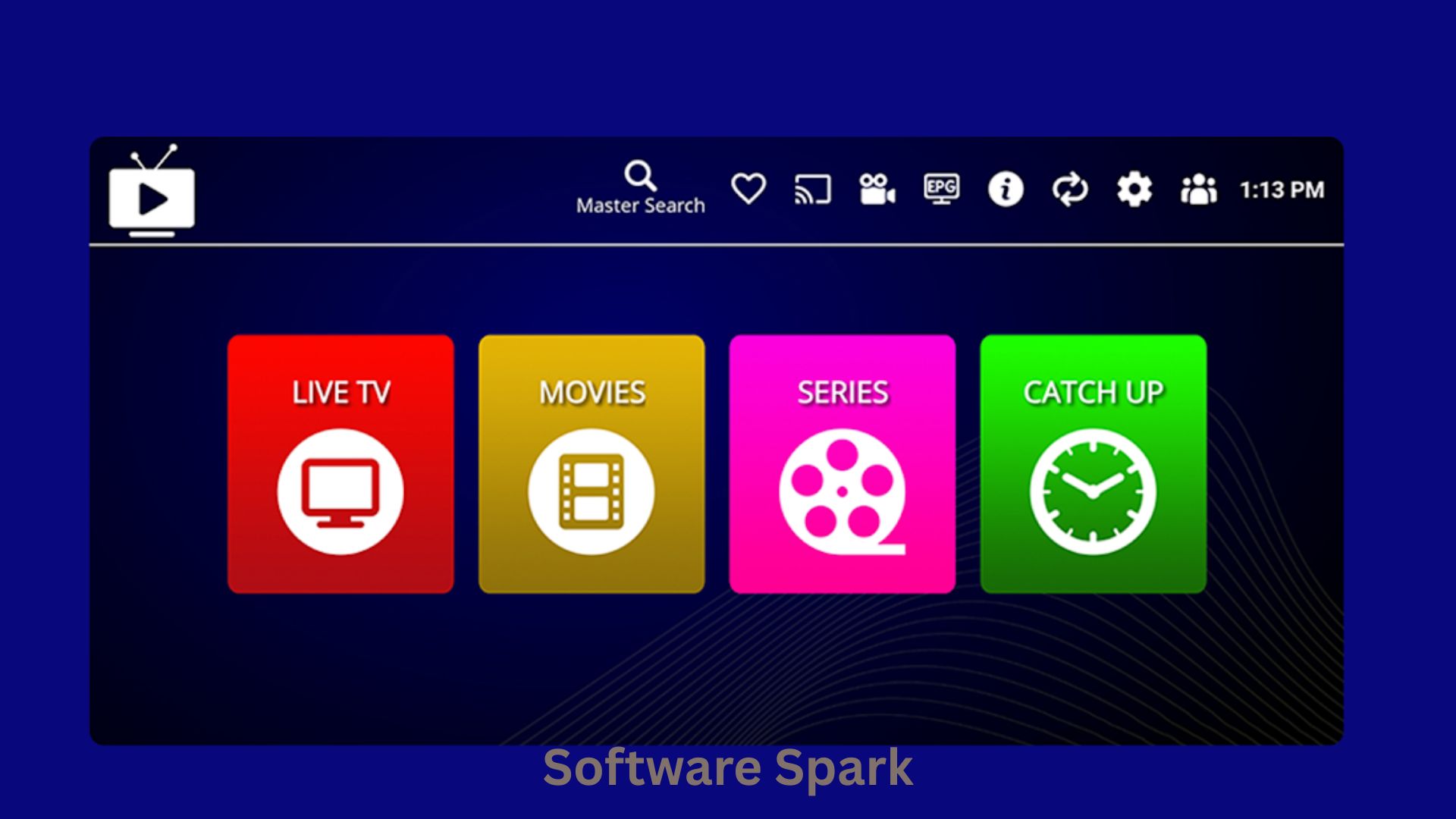
IPTV Stream Player – Watch Live TV on Your Windows PC
Cutting the cord has never been easier. These days, thousands of free and paid IPTV services deliver live television channels, movies, and series directly over the internet. But to watch them on your Windows computer, you need a reliable player. That is where IPTV Stream Player comes in.
IPTV Stream Player is a free, dedicated media player designed specifically for streaming IPTV content. Unlike general-purpose video players like VLC, this application is optimized for managing playlists, loading Electronic Program Guides (EPG), and handling the specific quirks of streaming protocols like M3U and M3U8.
Whether you want to watch live news, international sports, or your favorite TV series on a schedule, IPTV Stream Player turns your Windows PC into a full-featured television set. The interface is clean and familiar, resembling traditional TV guide layouts rather than a complicated video editor.
In this article, we will explore everything you need to know about IPTV Stream Player: its core features, how to install it, how to load your own playlists, and the pros and cons of using it compared to other streaming software. By the end, you will know if this is the right player for your home theater PC or daily desk setup.
Software Overview
IPTV Stream Player is a Windows-based desktop application designed for playing internet television streams. It is not a content provider. The software does not come with any channels pre-installed. Instead, it is a playlist-based player. You provide the M3U or M3U8 playlist URLs (usually obtained from a legitimate IPTV service provider), and the player handles the decoding, buffering, and display.
The application supports most common streaming formats, including HLS (HTTP Live Streaming), MPEG-TS, and RTMP. It also includes an Electronic Program Guide (EPG) viewer, which displays “what’s on now” and “what’s on next” if your service provides an EPG XML file.
Key characteristics of IPTV Stream Player include:
- Lightweight design: It does not consume excessive CPU or GPU resources, making it suitable for older laptops.
- Favorites management: You can mark specific channels as favorites for quick access.
- Parental controls: Basic PIN protection for specific channels or categories.
- Recording capability: Some versions allow you to record live streams to your hard drive (depending on the stream’s DRM restrictions).
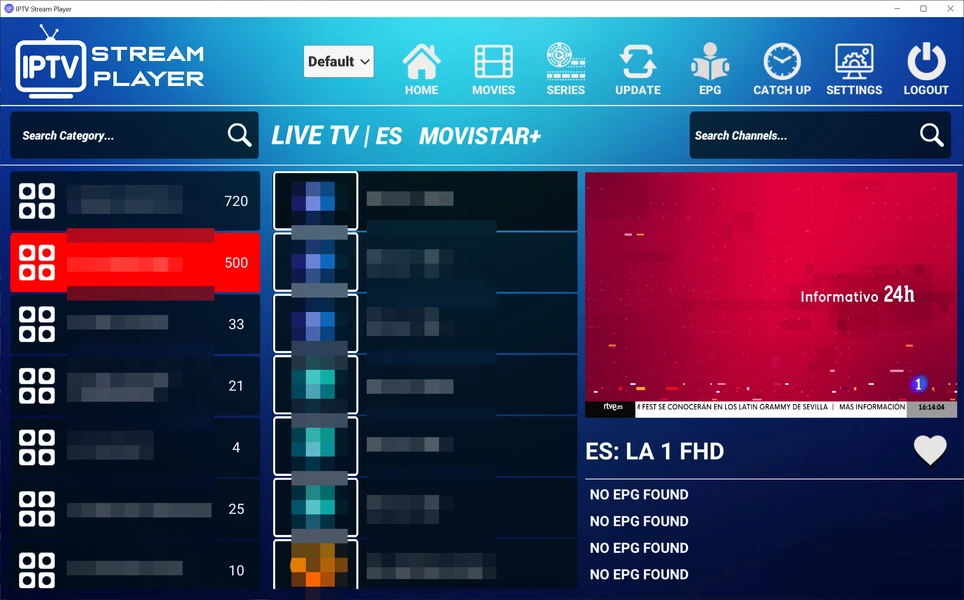
The user interface is divided into three main sections: a left sidebar for playlist categories, a central grid for channel listings (with logos if available), and a right-side or pop-out video player window. This layout is intuitive for anyone who has used a traditional TV guide.
Because IPTV Stream Player is free, it is an excellent entry point for users who are new to IPTV. However, power users may miss advanced features like timeshifting or multi-view (watching multiple channels at once).
Main Features with Detailed Descriptions
1. M3U and M3U8 Playlist Support
The heart of IPTV Stream Player is its ability to parse M3U and M3U8 playlists. These are text files that contain the URLs of video streams. You can load a playlist in three ways:
- From a local file: Load a
.m3ufile saved on your computer. - From a remote URL: Enter a web address (e.g.,
http://example.com/channels.m3u). The player will download the playlist automatically each time you open it. - From clipboard: Paste a long M3U text directly into the application.
The player organizes channels by category (e.g., “News,” “Sports,” “Entertainment”) if the playlist includes #EXTGRP tags. If not, it places all channels into a default group.
2. Electronic Program Guide (EPG) Integration
A channel list is useful, but knowing what is currently playing is better. IPTV Stream Player supports XMLTV EPG files (usually epg.xml or a URL). Once you load an EPG, the interface transforms into a standard TV guide grid.
You can see:
- The current program title and description.
- The start and end times.
- The next few programs on each channel.
The EPG data refreshes automatically on a schedule (e.g., every 6 hours). This feature turns the player from a simple stream viewer into a complete TV-watching experience.
3. Favorites and Channel Sorting
When you have hundreds or thousands of channels in a playlist, finding the one you want can be tedious. IPTV Stream Player allows you to:
- Star channels as favorites: A dedicated “Favorites” category appears at the top.
- Hide channels: Right-click a channel and select “Hide” to remove it from the list without deleting it from the playlist.
- Sort channels: Drag and drop channels to reorder them manually.
- Search: A search bar lets you type a channel name (e.g., “BBC”) and instantly filter the list.
These organization tools are essential for managing large playlists from commercial IPTV services that may include thousands of channels, many of which you never watch.
4. Recording Live Streams
One of the most valuable features for time-shifted viewing is the ability to record live streams. While watching a channel, you can click a “Record” button. The player will save the ongoing stream to a video file (usually .ts or .mp4) on your hard drive.
Key recording features:
- Schedule recording: You can set a future start and end time based on the EPG. For example, record “Monday Night Football” from 8 PM to 11 PM automatically.
- Format selection: Choose between saving as a single file or splitting into segments every 30 minutes.
- Storage management: Set a maximum disk usage limit; the player will delete the oldest recordings automatically.
Note: Recording may be disabled for streams that use DRM (Digital Rights Management). This is a legal restriction, not a software limitation.
5. Subtitle and Audio Track Support
Many IPTV streams include multiple audio tracks (e.g., original language vs. dubbed) and subtitles. IPTV Stream Player lets you:
- Switch between available audio tracks on the fly.
- Load external subtitle files (
.srt,.ass,.vtt). - Search for online subtitles by show name (if the stream provides metadata).
- Adjust subtitle sync (delay or advance) by milliseconds.
This feature is particularly useful for international channels or movie streams where the default audio may not be your preferred language.
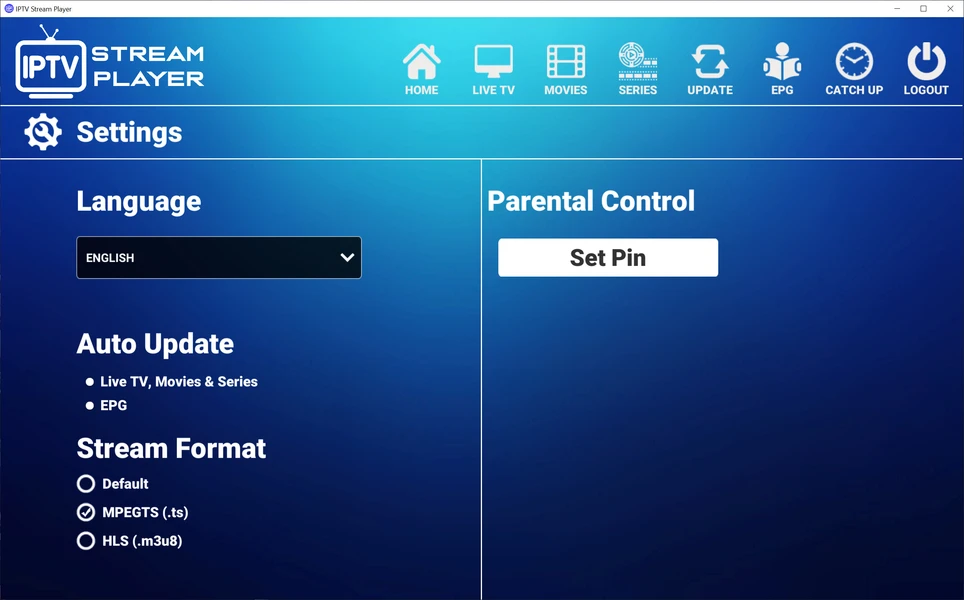
6. Parental Controls (PIN Protection)
If you have children at home, you may want to restrict access to adult channels. IPTV Stream Player includes a basic parental control system. You can:
- Set a 4-digit PIN code.
- Mark specific channels or entire categories as “restricted.”
- The player will ask for the PIN before playing any restricted content.
This is not a foolproof system (a determined child could reinstall the player), but it provides a helpful layer of friction to prevent accidental viewing.
7. Hardware Acceleration and Performance Tuning
Streaming high-definition (HD) or 4K video can be demanding on older computers. IPTV Stream Player offers hardware acceleration options:
- DXVA2 (DirectX Video Acceleration): Uses your GPU to decode video, reducing CPU load.
- Software decoding: Falls back to CPU if GPU support is lacking.
- Buffer size adjustment: Increase the buffer (e.g., to 10 seconds) for unstable internet connections to reduce stuttering.
You can also set the player to automatically switch to a lower resolution stream if your connection speed drops (requires playlist with multiple bitrate variants).
System Requirements
IPTV Stream Player is designed to be lightweight, but streaming HD video still requires a decent computer and internet connection.
| Requirement Category | Minimum Specification | Recommended Specification |
|---|---|---|
| Operating System | Windows 7, 8, 10, or 11 | Windows 10 or 11 (64-bit) |
| Processor (CPU) | 1.5 GHz dual-core | 2.5 GHz quad-core |
| Memory (RAM) | 1 GB | 4 GB |
| Graphics (GPU) | Integrated graphics with DXVA2 support | Dedicated GPU for 4K |
| Storage Space | 100 MB for app + space for recordings | 500 GB SSD for recordings |
| Internet Speed | 5 Mbps (for SD streams) | 25 Mbps (for 4K streams) |
| Additional | .NET Framework 4.7+ (installed automatically) | None |
How to Install and Set Up IPTV Stream Player (Step-by-Step)
Installing the player is simple. Setting it up with your IPTV service requires a few extra steps.
Step 1: Download the Installer
Go to your trusted download page (e.g., your website or CNET). Click the “Download Now” button. Save the .exe file to your “Downloads” folder.
Step 2: Scan the File (Recommended)
Right-click the downloaded file and select “Scan with Microsoft Defender” (or your antivirus). This ensures the file is safe.
Step 3: Run the Installer
Double-click the .exe file. If Windows SmartScreen appears, click “More info” and then “Run anyway.”
Step 4: Accept the License Agreement
Click “I Agree” or “Next.” Choose the installation folder (the default is fine). Click “Install.”
Step 5: Launch the Player
Once installation completes, check “Launch IPTV Stream Player” and click “Finish.”
Step 6: Load Your IPTV Playlist
You now need to add your channels. Click “File” > “Load Playlist” or “Add M3U URL.”
- If you have a local
.m3ufile, browse to it. - If you have a URL (from your IPTV provider), paste it into the box.
- Click “OK.”
Step 7: Load EPG (Electronic Program Guide)
To see “what’s on,” you need an EPG file (often provided by the same IPTV service). Click “Settings” > “EPG” > “Load XMLTV.” Enter the EPG URL or browse to a local .xml file. Click “Load.” The guide will populate within a few seconds.
Step 8: Start Watching
Double-click any channel in the list. The video player will open, and after a brief buffer (2-5 seconds), the stream should start playing.
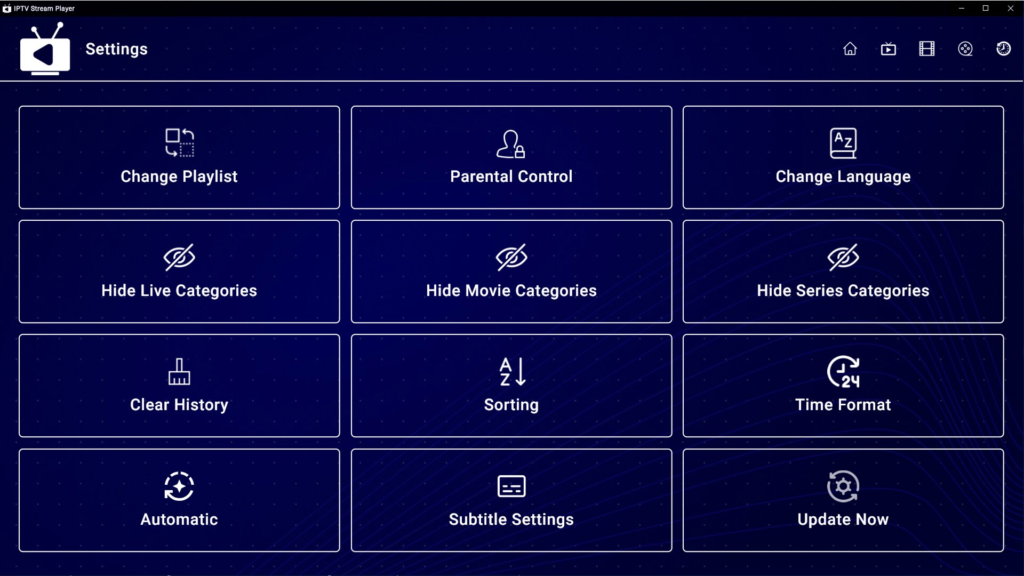
Step 9: Adjust Settings (Optional)
Go to “Settings” > “Playback.” Adjust the buffer size if you experience stuttering. Enable hardware acceleration if your GPU supports it.
Step 10: Set Up Recording Folder (Optional)
If you plan to record, go to “Settings” > “Recording.” Choose a folder with enough free space (e.g., D:\IPTV Recordings). Set a maximum disk usage (e.g., 50 GB) to avoid filling your hard drive.
Pros and Cons Table
IPTV Stream Player is a solid choice, but it is not the only option. Here is an honest comparison.
| Pros (Advantages) | Cons (Disadvantages) |
|---|---|
| Completely free: No hidden costs or premium version. | No built-in channels: You must provide your own playlist/EPG. |
| Supports M3U, M3U8, and XMLTV: Industry-standard formats. | Outdated interface: Looks like software from 2015, not modern. |
| Recording and scheduling: Save live streams for later. | No timeshifting: Cannot pause live TV and rewind (unlike VLC). |
| Hardware acceleration: Low CPU usage on older PCs. | No multi-view: Cannot watch 4 channels at once. |
| Parental controls: PIN protection for adult channels. | No mobile or web version: Windows only. |
| Favorites and search: Manage large playlists easily. | Occasional crashes: Some unstable streams may crash the player. |
| Subtitle and audio track support: Good for international content. | No automatic updates: You must manually download new versions. |
Practical Use Cases and Benefits
Use Case 1: The Cord-Cutter Replacing Cable TV
Scenario: You canceled your expensive cable subscription. You now subscribe to a legitimate IPTV service that provides 200 live channels, including local news, sports, and entertainment.
Benefit: You install IPTV Stream Player on your living room PC. You load your service’s M3U URL and EPG. Your computer now functions exactly like a cable box, with a grid guide, favorite channels, and the ability to record shows. You saved $100/month.
Use Case 2: The Expat Watching Home Country TV
Scenario: You moved from Italy to Canada. You miss Italian news and soccer matches. You find a legitimate IPTV service that streams Italian channels.
Benefit: IPTV Stream Player handles the Italian audio tracks and subtitle options seamlessly. You set up the player on your laptop and watch RAI and Mediaset channels as if you were back home.
Use Case 3: The Sports Fan Recording Games
Scenario: Your favorite soccer team plays at 3 AM local time. You cannot stay awake. You want to watch the full match the next morning without spoilers.
Benefit: In IPTV Stream Player, you find the match in the EPG, right-click, and select “Schedule Recording.” The player automatically records the stream from 3 AM to 5 AM. The next morning, you watch the match at breakfast, skipping the commercials.
Use Case 4: The Parent Managing Kids’ Content
Scenario: You have children at home. Your IPTV service includes adult channels in the same playlist. You do not want your kids accidentally accessing them.
Benefit: You use the Parental Controls in IPTV Stream Player. You set a PIN code and mark the adult category as “restricted.” Now, when your child opens the player, those channels do not even appear. The PIN is required to reveal them.
Use Case 5: The User with a Slow Internet Connection
Scenario: You live in a rural area with only 6 Mbps DSL internet. Many IPTV streams buffer constantly.
Benefit: In IPTV Stream Player, you increase the buffer size to 15 seconds. This gives the player more time to fill the buffer before playback starts. You also enable hardware acceleration to reduce CPU load. The result is smoother playback despite the slow connection.
Frequently Asked Questions (FAQ)
Q1: Is IPTV Stream Player legal?
Yes, the software itself is completely legal. It is just a media player. However, how you use it determines legality. Watching free, unlicensed streams of copyrighted channels (e.g., paid sports networks) may violate copyright laws in your country. Always use IPTV Stream Player with playlists from legitimate sources, such as:
- Free, legal channels (e.g., news channels that offer free streaming).
- Paid IPTV services that have licensing agreements.
- Your own private streams (e.g., from a home media server).
Q2: Does IPTV Stream Player come with any free channels?
No. The player contains zero channels out of the box. You must provide your own M3U playlist URLs. Some users mistakenly believe the software includes channels, but that would be illegal for the developer to bundle. Think of it like a web browser: the browser does not include websites; you provide the URLs.
Q3: Why do some channels not play or show a black screen?
There are several common reasons:
- The stream is offline: The channel is not currently broadcasting.
- The URL expired: Many free playlists use URLs that expire daily. You need a fresh playlist.
- Geographic restriction: The channel is blocked in your country. Try a VPN.
- Codec missing: The stream uses a video codec (e.g., H.265) that your computer does not support. Install the appropriate codec pack (e.g., K-Lite).
- Server overload: The streaming server has too many viewers. Try again at a different time.
Q4: Can I watch 4K or HDR streams with IPTV Stream Player?
Yes, if your hardware and internet connection support it. The player can decode 4K H.264 and H.265 streams. For HDR (High Dynamic Range), your monitor must support HDR, and you must enable HDR in Windows Display Settings. However, 4K IPTV streams are rare and require very high bandwidth (50+ Mbps).
Q5: How do I get an M3U playlist and EPG?
You must obtain them from an IPTV service provider. There are three common ways:
- Free, legal playlists: Search for “free legal IPTV M3U” (e.g., Pluto TV, Samsung TV Plus sometimes offer M3U links).
- Paid IPTV services: Many commercial IPTV providers (costing $5-15/month) email you an M3U URL and EPG URL after purchase.
- Create your own: If you have access to individual stream URLs, you can write your own M3U file using a text editor.
We cannot recommend specific providers due to legal variability by country.
Q6: Can I use IPTV Stream Player on Windows 11?
Yes. The player is fully compatible with Windows 11. It runs as a desktop application and respects Windows 11’s snap layouts and virtual desktops. Some users report that installing it on Windows 11 requires .NET Framework 4.8, which is usually already present.
Q7: The player crashes when I load a very large playlist (5000+ channels). What should I do?
Very large playlists can cause memory issues. Try these solutions:
- Split the playlist: Use a text editor to split your huge M3U file into smaller files (e.g., by category).
- Increase RAM allocation: In the player’s settings (if available), increase the maximum cache size to 1024 MB.
- Use a lighter player: Consider VLC or Kodi, which are better optimized for massive playlists.
- Update your graphics drivers: Outdated drivers can cause crashes when decoding many streams.
Q8: Does IPTV Stream Player support VPNs?
Yes. The player works with any VPN that runs at the system level (e.g., NordVPN, ExpressVPN, ProtonVPN). Simply connect your VPN to a server in the required country before launching the player. The stream will then think you are located in that country. This is useful for geo-restricted channels. Remember to comply with the IPTV service’s terms of use.
Q9: Can I use IPTV Stream Player on my TV via HDMI?
Yes. Connect your Windows PC to your TV via HDMI. Set the TV as the primary display or duplicate the screen. Then run IPTV Stream Player in full-screen mode. Use a wireless keyboard or remote control app (e.g., Unified Remote) to control the player from your couch. This turns your PC into a home theater PC (HTPC).
Q10: How do I update IPTV Stream Player to the latest version?
The application does not auto-update. You must:
- Visit the official download page or your software website.
- Check the version number of the latest release.
- Download the new installer.
- Uninstall the old version (optional but recommended) and run the new installer.
Your playlists and settings may be preserved if you do not delete the configuration folder (usually%AppData%\IPTV Stream Player).
Conclusion
IPTV Stream Player fills a specific but important niche: it is a dedicated, free, and easy-to-use IPTV client for Windows. It does not try to be a general media player like VLC or a full home theater system like Kodi. Instead, it focuses on doing one thing well: playing live TV streams from M3U playlists with an electronic program guide.
For cord-cutters, expats, sports fans, and casual viewers who have a legitimate IPTV subscription, this player offers an excellent balance of features and simplicity. The ability to record live shows, set parental controls, and manage favorites makes it far superior to simply opening M3U files in a web browser or basic video player.
Yes, the interface is a bit dated. Yes, you have to provide your own content. But for the price—zero dollars—those are minor complaints. If you are already paying for an IPTV service and want a dedicated Windows app that feels like a cable box, give IPTV Stream Player a try.
Download it today, load your playlist, and rediscover the joy of channel surfing—this time, on your terms.



