AMD Cleanup Utility Review- Driver Removal
Read our comprehensive review of the AMD Cleanup Utility, the tool for thoroughly removing AMD graphics and audio drivers. Learn how it works and when to use it.
Introduction: The Importance of a Clean Driver Installation
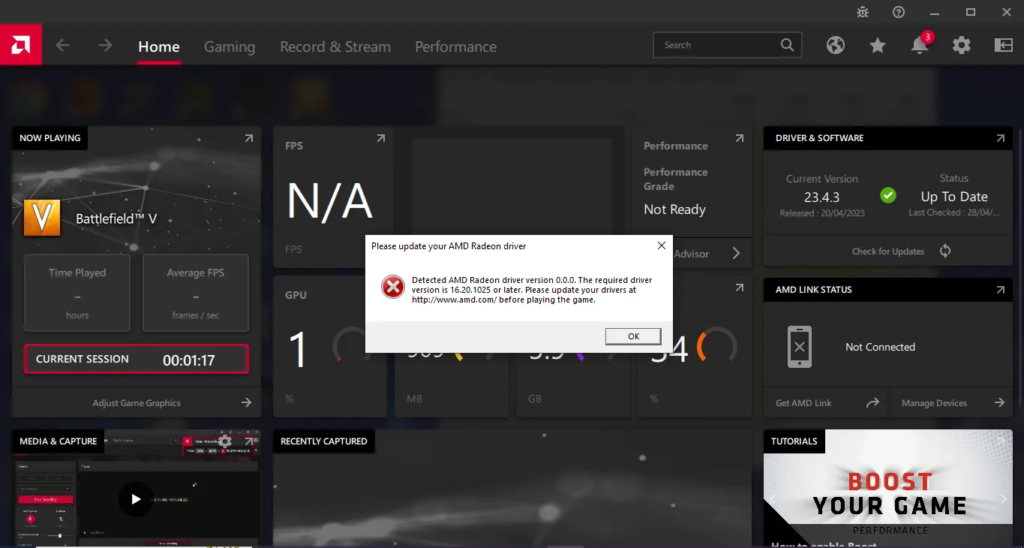
When upgrading or troubleshooting your computer’s graphics card, a clean driver installation is often essential. Leftover files, folders, and registry entries from previous driver installations can cause conflicts, leading to display issues, system instability, or installation failures. The AMD Cleanup Utility is a tool designed to solve this problem by thoroughly removing all traces of AMD graphics and audio drivers from your system. This review explores what the utility does, how it works, and who it’s for.
What is the AMD Cleanup Utility?
The AMD Cleanup Utility is a free system tuning tool developed by AMD for Windows. Its primary purpose is to completely remove previously installed AMD graphics and audio drivers and associated software from your system. It ensures that leftover files, folders, and registry entries don’t interfere with a fresh installation of new drivers.
This utility is particularly useful when the standard uninstall method—using the Windows Control Panel or the driver’s own installer—fails to remove everything. It provides a more thorough, guided cleanup process to prepare a “clean foundation” for new driver installations.
Key Features of the AMD Cleanup Utility
Thorough Driver Removal
The utility’s main strength is its ability to completely remove all AMD display and audio driver files, registry entries, and driver store items. This comprehensive cleaning is essential to avoid conflicts, display issues, or installation failures when installing new drivers.
Guided Workflow
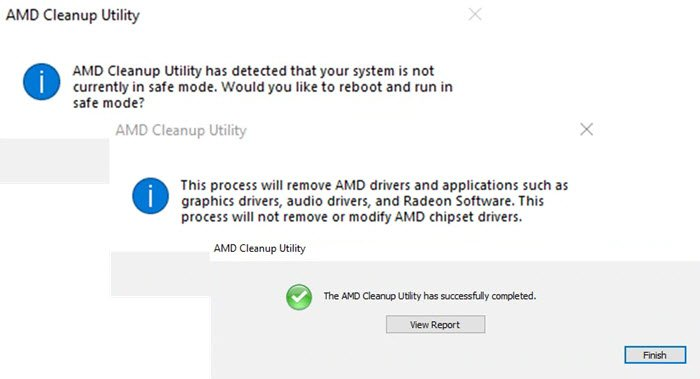
The AMD Cleanup Utility is designed to be user-friendly with a clear, guided process. It prompts you to reboot into safe mode and then guides you through the final system reboot after the cleanup is complete. This step-by-step approach reduces the chance of errors.
System Restore Point
Before beginning the cleanup process, the utility automatically creates a system restore point. This provides a valuable fallback option, allowing you to restore your system to its previous state if any problems arise.
Focused Scope
The utility is focused exclusively on AMD GPU and audio components. It does not affect AMD chipset drivers or other non-AMD components, ensuring a targeted cleanup without impacting unrelated system files or settings.
Important Considerations
Requires Driver Reinstall
It is crucial to understand that running this utility will completely remove all AMD graphics drivers from your system. Your computer will not have a functional graphics driver until you install new ones. You should download the latest drivers from AMD’s website before running the utility.
Windows-Only
The AMD Cleanup Utility is only available for Windows. It does not have versions for macOS or Linux.
Not a General Cleanup Tool
This utility is not a system cleaner for general use. Its purpose is specifically for AMD driver removal and is not designed to clean other types of system files.
How to Use the AMD Cleanup Utility
- Download the Latest Drivers: Before you start, visit AMD’s website and download the latest drivers for your graphics card. Save them to an easy-to-find location.
- Download the Utility: Download the AMD Cleanup Utility from AMD’s official website.
- Run the Utility: Run the executable file. You will be prompted to reboot into Safe Mode.
- Follow the Prompts: After rebooting, the utility will run and clean all AMD driver files and registry entries.
- Reboot: Once the cleanup is complete, you will be prompted to reboot your system.
- Install New Drivers: After the final reboot, install the new drivers you downloaded in step 1.
Frequently Asked Questions (FAQs)
1. Is the AMD Cleanup Utility free?
Yes, the AMD Cleanup Utility is completely free to download and use.
2. Does the AMD Cleanup Utility remove all AMD drivers?
Yes, it removes all AMD display and audio driver files, registry entries, and driver store items. This includes both graphics and audio drivers.
3. What happens after I run the AMD Cleanup Utility?
After the utility runs, your system will not have a functional AMD graphics driver installed. You must install new drivers for your graphics card to work properly.
4. Does the AMD Cleanup Utility affect chipset drivers?
No, the utility is focused exclusively on AMD GPU and audio components and does not affect chipset drivers.
5. Is the AMD Cleanup Utility safe to use?
Yes, it is a safe and official tool from AMD. The utility creates a system restore point before making changes, providing a fallback option.
Conclusion: An Essential Tool for AMD Users
The AMD Cleanup Utility is a practical and effective tool for anyone who needs to perform a clean installation of AMD graphics drivers. Its thorough removal process helps prevent conflicts and ensures a stable system. While it requires you to reinstall drivers afterward and has a limited scope, it excels in its intended purpose. For AMD users who frequently update their drivers or troubleshoot issues, this utility is a valuable addition to their software toolkit.



