Windows 10 Media Creation Tool Review-
Read our comprehensive review of the Windows 10 Media Creation Tool, Microsoft’s official utility for downloading, installing, and creating bootable media for Windows 10.
Introduction: The Official Path to Windows 10
Whether you want to upgrade your current PC to Windows 10, perform a clean installation, or create a bootable USB drive for another computer, you need a reliable tool to get the job done. Microsoft’s Windows 10 Media Creation Tool is the official answer to all these needs. This free utility serves as a one-stop-shop for downloading Windows 10 and preparing it for installation. This review explores what the tool does, how it works, and who it’s for.
What is the Windows 10 Media Creation Tool?
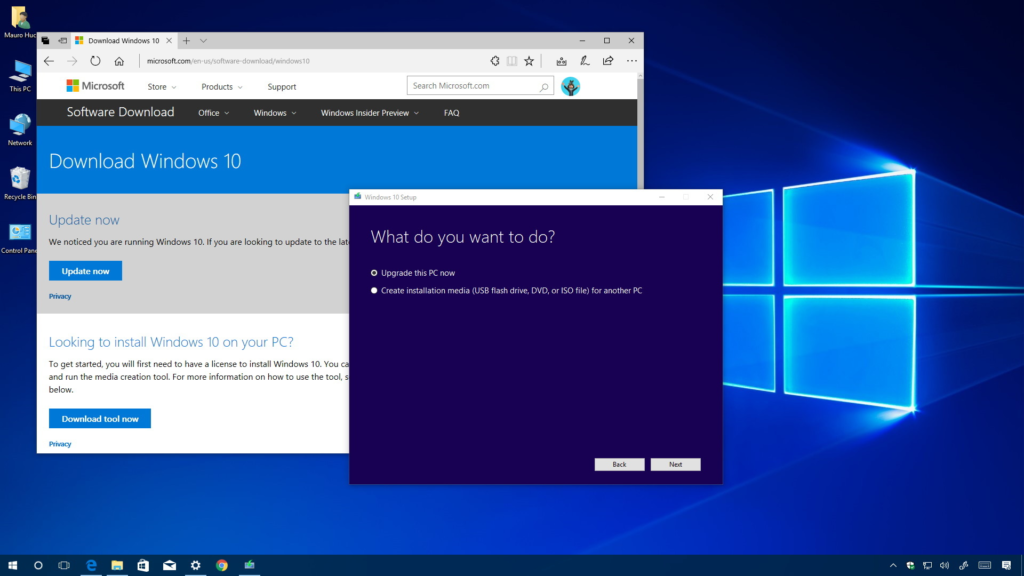
The Windows 10 Media Creation Tool is a free, official utility from Microsoft that serves several key purposes. It allows you to download the latest Windows 10 installation files directly from Microsoft’s servers and use them to either:
- Upgrade your existing PC to Windows 10.
- Create installation media (a bootable USB drive or an ISO file) to install Windows 10 on another computer or for a clean installation.
It is a small, lightweight application that automates a process that would otherwise be complex and error-prone, making it the recommended method for obtaining Windows 10.
Key Features of the Media Creation Tool
Download Official Windows 10 Images
The tool connects directly to Microsoft’s distribution servers to download the most up-to-date Windows 10 build. You can choose the language, edition (e.g., Windows 10 Home, Windows 10 Pro), and architecture (32-bit or 64-bit) you need.
Create Bootable USB Drives
The tool can create a bootable USB flash drive. It validates the image integrity and writes all necessary boot sectors to the media, ensuring the USB drive is ready to boot a system and start the Windows installation process.
Generate ISO Files
You can use the tool to create an ISO file. This is a single file that contains the entire Windows 10 installation. You can then burn this ISO to a DVD or use it with virtualization software.
In-Place Upgrade
If you’re running a supported version of Windows (like Windows 7 or 8.1), the tool can initiate a direct upgrade to Windows 10. It performs an in-place installation that, if configured correctly, preserves your personal files and applications.
Bootable Recovery Environment
When you boot from the installation media created by the tool, you gain access to Windows Recovery Tools. This includes options like Startup Repair, System Restore, and command-line utilities, which are invaluable for troubleshooting and fixing boot problems.
How to Use the Media Creation Tool
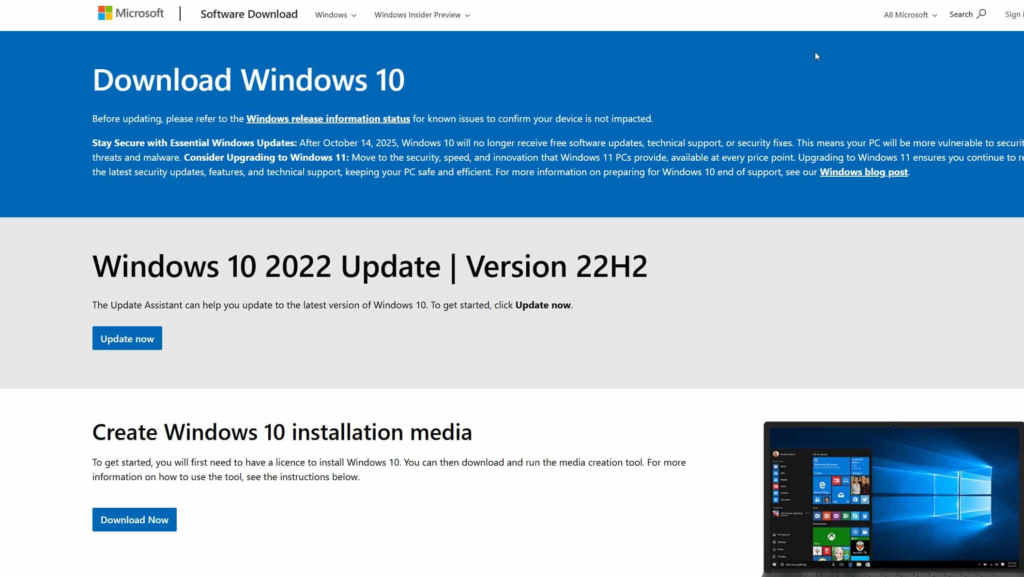
- Download the Tool: Visit the official Microsoft website and download the Media Creation Tool.
- Run the Tool: Launch the application. You will need to accept the license terms.
- Choose Your Action: Select either “Upgrade this PC now” or “Create installation media for another PC.”
- Select Your Options: If you choose to create media, you’ll be prompted to select the language, edition, and architecture.
- Choose Media Type: Choose whether you want to create a USB flash drive or download an ISO file.
- Follow the Prompts: The tool will guide you through the rest of the process. For a USB drive, you’ll need a blank drive with at least 8GB of space.
Limitations and Considerations
- Windows 10 Only: The tool is specifically for Windows 10 and does not support older or newer versions (like Windows 11).
- No Customization: It does not allow you to customize the Windows 10 image, such as adding drivers or removing components (known as “slipstreaming”). For that, you would need third-party tools.
- Internet Connection Required: You need a stable internet connection to download the installation files.
- USB Drive Requirements: For the USB drive option, you need a drive with at least 8 GB of storage, and all data on it will be erased.
Frequently Asked Questions (FAQs)
1. Is the Windows 10 Media Creation Tool free?
Yes, the Media Creation Tool is completely free to download and use.
2. Can I use the Media Creation Tool to install Windows 11?
No, this tool is specifically for Windows 10. Microsoft provides a separate tool for Windows 11.
3. What is the difference between a USB drive and an ISO file?
A bootable USB drive is a physical drive you can plug into a computer to boot and install Windows. An ISO file is a digital file that contains the installation data, which you can burn to a DVD or use with virtualization software.
4. Do I need a product key to use the Media Creation Tool?
You do not need a product key to download or create installation media. However, you will need a valid product key to activate Windows 10 after installation.
5. Can I use the Media Creation Tool to repair my Windows installation?
Yes, the bootable media you create includes Windows Recovery Tools, which can be used for repairs.
Conclusion: An Essential Tool for Windows Users
The Windows 10 Media Creation Tool is an essential and reliable utility for anyone who needs to install, reinstall, or upgrade to Windows 10. It simplifies a potentially complex process, ensuring you get a clean, official copy of the operating system. Its ability to create bootable media and perform in-place upgrades makes it a versatile tool for both IT professionals and everyday users. If you ever need to work with Windows 10, this is the tool to use.



