Microsoft Silverlight (64-bit) – Legacy Plugin Guide for Windows
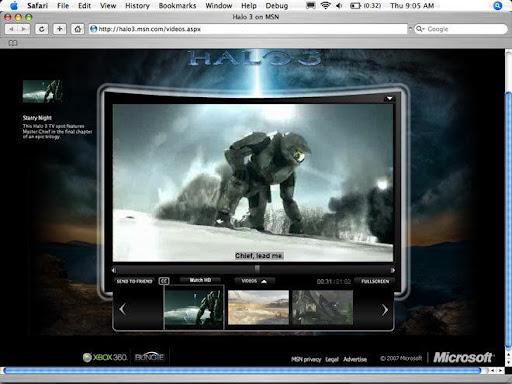
Remember when watching Netflix required a special browser plugin? That plugin was Microsoft Silverlight. Released as a competitor to Adobe Flash, Silverlight was once the standard for delivering rich media content on the web—high-quality video, interactive animations, and secure streaming.
Today, Silverlight exists in a different space. Modern browsers no longer support it by default, and most major websites have moved to HTML5. However, Microsoft Silverlight (64-bit) still plays an important role for specific legacy systems. Some corporate training portals, government websites, and certain streaming platforms (especially those using older infrastructure) continue to rely on this plugin.
In this guide, I’ll explain what Silverlight does, its key features like Smooth Streaming and PlayReady DRM, system requirements, installation steps, and when you might still need it. I will also cover security considerations and modern alternatives, so you can make an informed decision about keeping or removing Silverlight from your Windows PC.
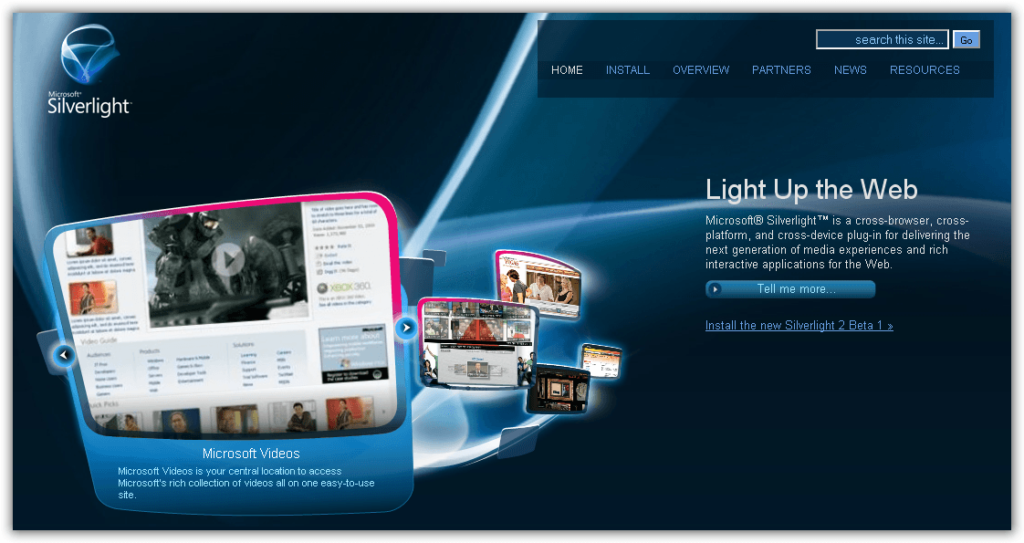
Software Overview
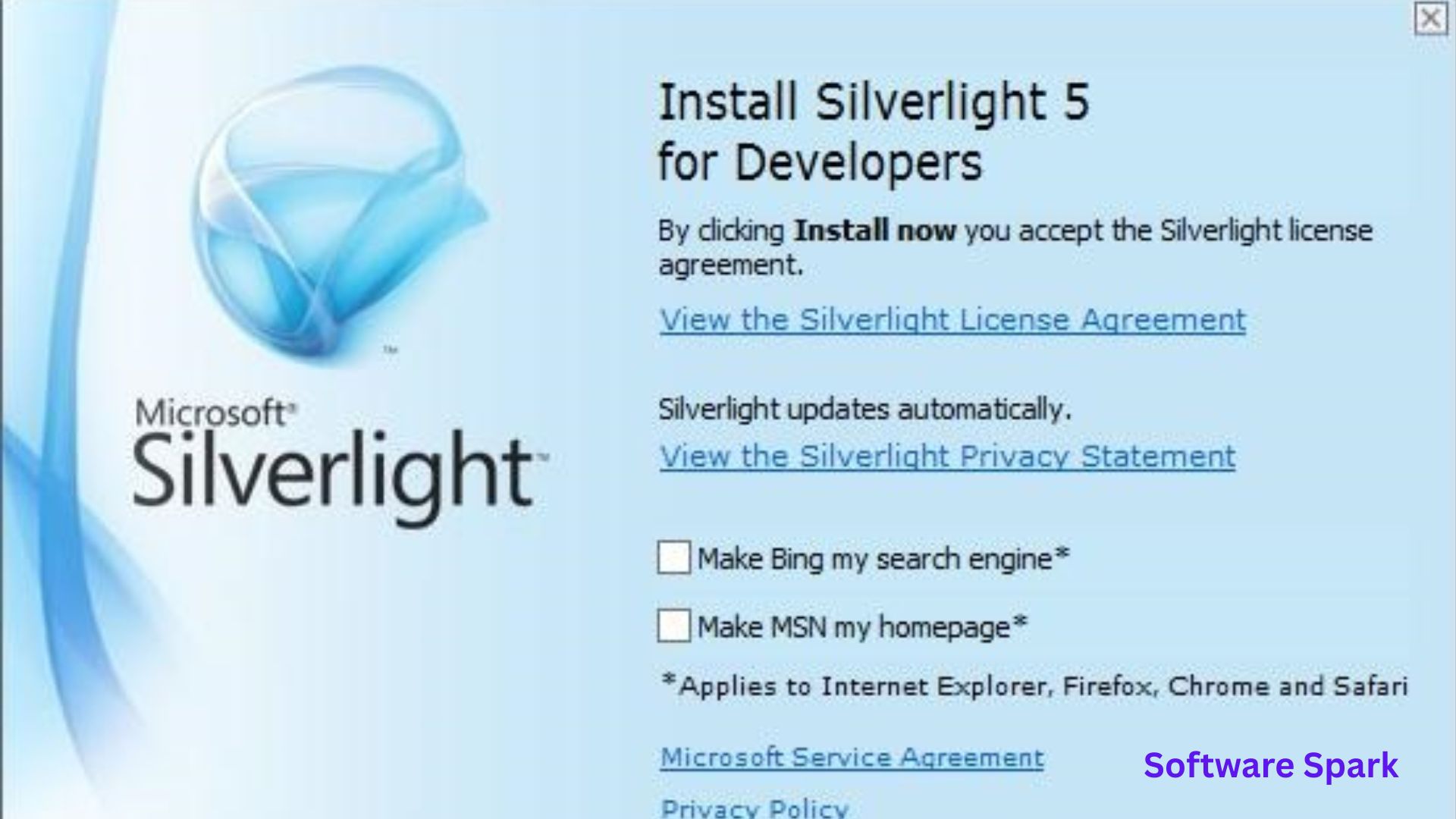
Microsoft Silverlight (64-bit) is a free browser plugin runtime developed by Microsoft. It was designed to power rich internet applications, media streaming, and interactive content on the web. At its core, Silverlight provides:
- Adaptive video streaming (Smooth Streaming) that adjusts quality based on your internet speed.
- Digital rights management (DRM) through PlayReady to protect premium content.
- High-resolution image navigation (Deep Zoom) for smooth zooming into large images.
- XAML-based user interface support for interactive applications.
Silverlight runs as a plugin within compatible browsers. The 64-bit version is specifically optimized for 64-bit editions of Windows and 64-bit browsers (though support for 64-bit browsers was always limited). The final major release is version 5.1.50907.0, which includes a security patch (KB4023307) addressing a remote code execution vulnerability.
It is not under active development. Microsoft ended mainstream support for Silverlight in 2021, and it only receives critical security updates on an as-needed basis.
Main Features
1. Smooth Streaming (Adaptive Bitrate)
Smooth Streaming is Silverlight’s flagship feature. When you watch a video, the plugin continuously monitors your available bandwidth and CPU performance. If your connection slows down, Silverlight lowers the video quality on the fly to prevent buffering. When speeds improve, it increases quality again. This happens seamlessly without interrupting playback.
Why it mattered: During the late 2000s and early 2010s, internet connections were less stable than today. Smooth Streaming made long-form content (movies, sports, news) watchable on varied connections.
2. PlayReady DRM (Content Protection)
Media companies (like Netflix, Amazon, and Hulu) need to prevent unauthorized copying and sharing of their content. Silverlight includes Microsoft PlayReady, a digital rights management system. It encrypts the video stream and only decrypts it within a secure environment on your PC.
Practical effect: You can watch premium movies and TV shows, but you cannot easily record or download them. This satisfied content owners and allowed streaming services to offer newer, higher-value content.
3. Deep Zoom Image Navigation
Deep Zoom allows you to explore extremely high-resolution images (e.g., medical scans, satellite photos, art masterpieces) without downloading the entire file. You can zoom in smoothly to see fine details, and Silverlight only loads the parts of the image you are currently viewing.
Use case: Museums used Deep Zoom to let visitors examine paintings at brushstroke level. Real estate sites used it for property blueprints.
4. XAML-Based UI and Developer Tools
Silverlight applications were built using XAML (Extensible Application Markup Language), similar to Windows Presentation Foundation (WPF). This allowed developers to create vector-based, resolution-independent interfaces that scaled cleanly on different screen sizes. It supported mouse input, keyboard events, and data binding.
Legacy relevance: Many internal corporate tools (training modules, data dashboards) were written in Silverlight and never migrated. If your company runs such a tool, you need Silverlight to access it.
5. Closed Captions and Playlist Support
Silverlight includes built-in support for closed captions (SAMI or Timed Text format) and playlists. This made it suitable for long-form programming like online courses or TV episode streaming. Developers could control playback order, captions, and chapters through simple XML manifests.
6. Media Stream Manifest Control
For developers, Silverlight exposes events from the stream manifest. This means an application can:
- Detect when video quality shifts.
- Log playback errors or stalls.
- Add custom analytics (e.g., “user paused at 02:34”).
- Provide customized error messages when streaming fails.
This level of control was advanced for its time and still serves some specialized media monitoring systems today.
System Requirements
| Component | Minimum Requirement |
|---|---|
| Operating System | Windows 7, Windows 8, Windows 10, Windows 11; also Windows XP (SP3), Vista, Server 2003/2008 |
| Architecture | 64-bit processor and 64-bit operating system |
| Browser Compatibility | Internet Explorer 11 (legacy mode), Firefox (old versions, 52-56), Chrome (versions before 45) – modern browsers block Silverlight |
| Processor | 1.6 GHz or faster (2.0 GHz recommended for HD video) |
| RAM | 512 MB (1 GB or more recommended for complex applications) |
| Hard Disk Space | 50 MB free space |
| Graphics | DirectX 9.0c compatible video card with 64 MB VRAM for hardware acceleration |
| Internet | Broadband connection for streaming media (minimum 1.5 Mbps for SD, 4+ Mbps for HD) |
| Additional Software | Windows Media Player 10 or later |
Installation Steps (Numbered Format)
Follow these steps to install Microsoft Silverlight (64-bit) on your Windows PC:
- Download the installer from a trusted source (e.g., CNET Download or Microsoft’s official site). The filename is typically
Silverlight_x64.exe. - Close all browser windows (Internet Explorer, Firefox, or any other browser). The installer cannot complete if browsers are still running.
- Right-click the downloaded file and select “Run as administrator” (recommended for proper plugin registration).
- Read the license terms, then click “Install now” if you agree.
- The installer will show a progress bar while it copies files and registers the plugin with your system.
- If Windows SmartScreen or User Account Control prompts you, click “Yes” to continue.
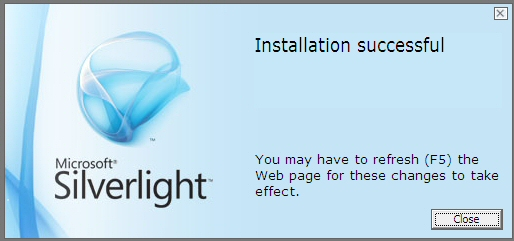
- Once installation completes, you will see a confirmation screen. Click “Finish” .
- Restart your browser (or reboot your computer) to complete the integration. The plugin is now active.
- To verify installation, visit a legacy Silverlight test page (such as Microsoft’s Silverlight version checker – if still available) or your corporate application.
- Optional: To manage Silverlight settings later, use the Microsoft Silverlight Configuration tool located in your Windows Control Panel.
Important: Modern browsers (Chrome 45+, Firefox 52+, Edge, Safari) block or completely remove NPAPI plugin support. You will likely need to use Internet Explorer 11 or a dedicated “Internet Explorer mode” in newer browsers to run Silverlight.
Pros and Cons
Pros
- ✅ Reliable adaptive streaming – reduces buffering on variable connections.
- ✅ Strong DRM – PlayReady meets premium content protection needs.
- ✅ Built-in captions & playlists – suitable for long-form video.
- ✅ Hardware-accelerated video – uses GPU for smoother playback.
- ✅ Small runtime – under 10 MB download size.
- ✅ Supports older Windows versions – works on Windows XP through Windows 11.
- ✅ Security patch available – version 5.1.50907.0 addresses a known remote code execution risk.
Cons
- ❌ No active development – Microsoft ended mainstream support in 2021.
- ❌ Shrinking browser compatibility – most modern browsers block plugins.
- ❌ Security risk – any unpatched plugin is a potential vector for attackers.
- ❌ Poor mobile support – never worked on iOS or Android (limited to Windows Phone, which is defunct).
- ❌ No 64-bit browser support – ironically, the 64-bit plugin works primarily with 32-bit browsers (except specific old IE versions).
- ❌ Troubleshooting complexity – requires specialized knowledge that many IT teams no longer have.
- ❌ Not recommended for new projects – HTML5 is the standard for a reason.
Practical Use Cases and Benefits
1. Accessing Corporate Legacy Systems
Many large organizations built internal training systems, HR portals, or data visualization tools on Silverlight between 2008 and 2015. If your employer never migrated, you need Silverlight to access those resources. Benefit: Continue working without waiting for an IT migration that may never come.
2. Maintaining Older Media Servers
Some smaller streaming platforms (especially in education or niche entertainment) still use Windows Media Services with Silverlight front-ends. Benefit: Keep legacy content available without rebuilding the entire streaming pipeline.
3. Viewing Archived Web Content
Digital preservation projects, academic archives, or museum collections may have interactive Silverlight exhibits. Benefit: Access historical web content as originally intended for research or documentation.
4. Testing and Compatibility Validation
If you are a software tester maintaining an old enterprise product, you may need Silverlight to validate bug fixes. Benefit: Support paying customers who have not yet upgraded their infrastructure.
5. Offline or Air-Gapped Environments
Some government, military, or industrial control networks are disconnected from the internet (air-gapped) and cannot easily update to HTML5. Silverlight, once installed, works offline and without automatic updates. Benefit: Reliable playback in restricted environments.
FAQs (Frequently Asked Questions)
1. Is Microsoft Silverlight still safe to use?
Silverlight is no longer actively maintained for new features, but Microsoft may release critical security patches (as they did with version 5.1.50907.0). However, the plugin model itself is inherently riskier than modern HTML5. Recommendation: Only use Silverlight if you absolutely must for a specific legacy website. Keep Windows and your browser updated, and consider running Silverlight in a isolated virtual machine or using Internet Explorer with Enhanced Security Configuration.
2. Why doesn’t Netflix work in my browser anymore?
Netflix dropped Silverlight support in 2015 and switched to HTML5 video. If Netflix asks you to install Silverlight, you are likely using an outdated browser or operating system. Update to a modern browser (Edge, Chrome, Firefox) and Netflix will use built-in HTML5 streaming.
3. How do I uninstall Silverlight completely?
Go to Control Panel > Programs and Features, find “Microsoft Silverlight,” click Uninstall. After removal, you may also want to clear browser cache and delete any leftover Silverlight folders from C:\Program Files\Microsoft Silverlight. Some users also run a registry cleaner to remove orphaned keys.
4. Can I run Silverlight on Windows 11?
Yes, but with significant limitations. You must use Internet Explorer 11 (which is still included but hidden – search for “Internet Explorer” in Start) or enable IE Mode in Microsoft Edge. No other modern browser will work. You also need the 64-bit version of Silverlight if you have a 64-bit OS.
5. What replaced Microsoft Silverlight?
HTML5 (specifically the <video> and <audio> elements, Media Source Extensions, and Encrypted Media Extensions) replaced Silverlight. Other alternatives include Adobe Flash (also deprecated), Adobe AIR, and WebAssembly for interactive applications. For streaming, HLS (HTTP Live Streaming) and MPEG-DASH are the standards.
6. Does Silverlight work on Mac?
Silverlight for Mac existed but was discontinued. The final Mac version (5.1.50918.0) only works on older macOS versions (up to 10.14 Mojave) and with Safari 11 or Firefox 52. It is not compatible with Apple Silicon (M1/M2/M3) or recent macOS releases. This guide focuses on the Windows 64-bit version.
7. Why does a website tell me to install Silverlight when it’s already installed?
This usually happens for one of three reasons:
- Browser blocked the plugin – check your browser’s plugin/add-on settings and enable Silverlight.
- You installed the 32-bit plugin but use a 64-bit browser – try a 32-bit browser instead.
- The website requires a specific Silverlight version – check if you have version 5.x (the last release). Older versions (1-4) may not work with some sites.
8. Is Silverlight malware or a virus?
No. The official Microsoft Silverlight is legitimate software. However, some malicious websites distribute fake Silverlight installers that contain malware. Always download from official sources (Microsoft.com) or reputable sites like CNET Download. Never trust a pop-up that asks you to “update Silverlight” while browsing.
9. Can I stream protected premium content without Silverlight?
Yes. Modern DRM for HTML5 is provided by Widevine (Google, used by Netflix, Amazon, Disney+), PlayReady (Microsoft’s HTML5/EME implementation), or FairPlay (Apple). You do not need the Silverlight plugin anymore for mainstream services.
10. My company still uses Silverlight – what should I do?
Recommend that your IT department start planning a migration to HTML5. In the meantime:
- Use a dedicated Windows 10/11 virtual machine with Internet Explorer 11 just for Silverlight apps.
- Apply all Windows and Silverlight security updates.
- Consider air-gapping that machine if it accesses sensitive data.
- Do not use the same machine for general web browsing.
Conclusion
Microsoft Silverlight (64-bit) is a piece of web history. It solved real problems – adaptive streaming, DRM, rich interactivity – at a time when HTML5 was not ready. For users and organizations that still depend on legacy Silverlight applications, it remains a necessary tool.
However, for the vast majority of home users and modern websites, Silverlight is not recommended. The security risks, browser incompatibility, and lack of ongoing development outweigh any benefit. You should uninstall it unless you have a specific, ongoing need.
If you are maintaining a legacy system that requires Silverlight, treat it as you would any aging infrastructure: isolate it, keep it patched, and plan for a migration. If you are a developer starting a new project, do not use Silverlight – embrace HTML5, DASH, HLS, and Web Components.
Microsoft Silverlight served its purpose faithfully for over a decade. But the web has moved on, and it is time for most users to do the same.