HiBit Uninstaller Review – Complete Software Removal for Windows
We all know the frustration: you uninstall a program, but it leaves behind scattered files, empty folders, and mysterious registry entries. Over time, these digital leftovers slow down your PC and cause conflicts. That’s where HiBit Uninstaller steps in.
Unlike the basic Windows “Add or Remove Programs” tool, HiBit Uninstaller is designed for a deep, complete cleanup. It doesn’t just remove the main program; it scans for and deletes leftover files, registry keys, and settings. Even better, it includes several extra utilities: a registry cleaner, junk file remover, startup manager, and browser extension manager—all in one free package.
In this article, I’ll walk you through everything you need to know: main features, installation, system requirements, pros and cons, real-world use cases, and an FAQ section. Whether you’re a casual user tired of bloatware or a tech enthusiast who likes a lean system, this guide will help you decide if HiBit Uninstaller is right for you.
Software Overview
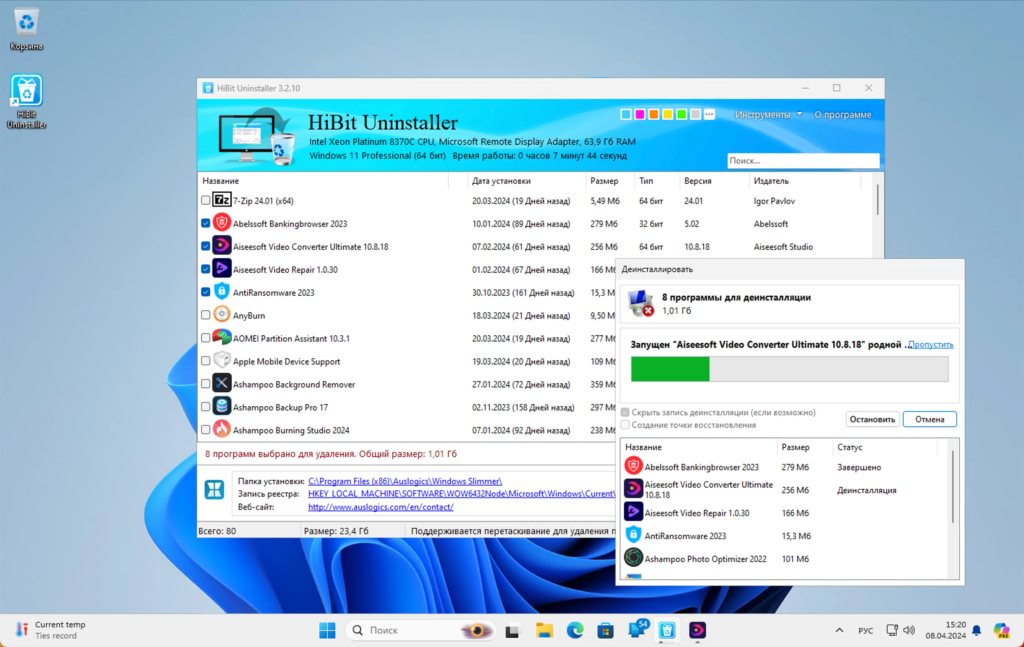
HiBit Uninstaller is a free, portable (optional), and powerful uninstall tool for Windows. Its primary job is to remove other software completely—no hidden files or registry entries left behind. It also includes a set of system maintenance tools:
- Forced uninstall for broken or stubborn apps
- Batch uninstall of multiple programs
- Removal of Windows Store (UWP) apps
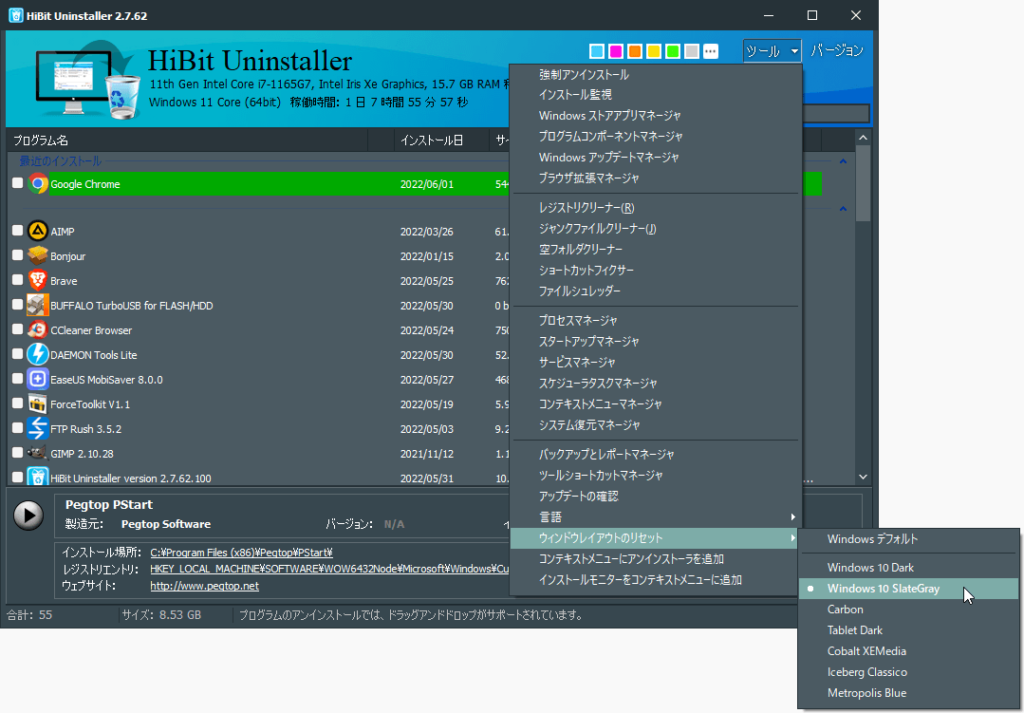
- Registry cleanup and repair
- Junk file and empty folder removal
- Startup item management
- Browser extension manager
- File shredder (secure deletion)
- System restore point manager
The software is lightweight (under 10 MB) and works on Windows 7, 8, 10, and 11 (including older versions like Vista and 2003). The interface is clean and intuitive, making it suitable for beginners and power users alike.
Main Features:
1. Complete Uninstall Without Leftovers
When you uninstall a program normally, many apps leave behind configuration files, cache, and registry entries. HiBit Uninstaller runs the program’s own uninstaller first, then scans for any remaining items on your hard drive and registry. You can review them and delete them with one click.
2. Forced Uninstall for Stubborn Software
Some programs won’t uninstall because they are corrupted, partially missing, or malicious. The “Forced Uninstall” feature lets you remove such entries by force. It works even if the uninstaller file is missing. This is very useful for removing old antivirus traces, broken games, or toolbars.
3. Batch Uninstall (Multiple Programs at Once)
Instead of uninstalling one app at a time, you can select several programs and remove them in a single operation. This saves time when cleaning up a new-to-you PC or uninstalling multiple bloatware apps.
4. Remove Windows Store Apps
Standard Windows uninstall often doesn’t allow removing built-in apps like Xbox, Mail, or Camera. HiBit Uninstaller lists all UWP apps and lets you uninstall them completely, even those Microsoft usually hides. (Note: Some critical system apps are excluded for safety.)
5. Registry Cleaner and Fixer
Over time, your registry collects invalid entries from uninstalled software, moving files, or failed updates. The built-in registry cleaner scans for these issues and allows you to repair them safely. You can create a backup before making changes.
6. Junk File Cleaner
This tool finds and removes temporary files, log files, cache, recycle bin contents, and other unnecessary data that takes up space. It’s similar to Disk Cleanup but more thorough.
7. Startup Manager
Many programs add themselves to Windows startup, slowing boot time. HiBit Uninstaller shows you all startup programs, scheduled tasks, and services. You can easily disable, delete, or delay them.
8. Browser Extension Manager
Supported browsers (Chrome, Edge, Firefox, Opera, etc.) are scanned for extensions. You can remove unwanted or suspicious extensions directly from HiBit Uninstaller without opening each browser.
9. File Shredder
When you delete a file normally, it can sometimes be recovered with data recovery tools. The file shredder overwrites the data multiple times, making it permanently unrecoverable—good for sensitive documents.
10. Empty Folder & Invalid Shortcut Finder
These tools scan your drives for empty directories (which clutter navigation) and shortcuts that point to missing files. You can delete them in bulk.
System Requirements
| Component | Minimum Requirement |
|---|---|
| Operating System | Windows 7, Windows 8, Windows 10, Windows 11; also Windows Vista and Windows 2003 |
| Architecture | 32-bit and 64-bit compatible |
| Processor | 1 GHz or faster |
| RAM | 512 MB (1 GB recommended) |
| Hard Disk Space | 50 MB free space (plus additional for logs/backups) |
| Additional Software | None – standalone executable works without installation |
| Internet | Required only for automatic updates |
Installation Steps (Numbered Format)
Follow these steps to install HiBit Uninstaller on your Windows PC:
- Download the installer from a trusted source (e.g., CNET Download or the developer’s official site). The file name is usually
HiBitUninstaller.exe. - Run the downloaded file. Windows might show a SmartScreen warning; click “More info” then “Run anyway” because the software is safe.
- Choose your language from the dropdown (English is default) and click OK.
- The setup wizard opens. Click Next.
- Read and accept the license agreement, then click Next.
- Select the destination folder (or leave default
C:\Program Files\HiBit Uninstaller). Click Next. - Optional: Choose whether to create a desktop icon and add to context menu (right-click uninstall). Click Next.
- Click Install to begin copying files.
- After installation, choose whether to launch HiBit Uninstaller immediately. Click Finish.
- Alternative: You can also run the portable version by extracting the ZIP file and double-clicking
HiBitUninstaller.exe– no installation needed.
Pros and Cons
Pros
- ✅ Completely free with no ads or paywalls.
- ✅ Portable version available – runs from USB stick.
- ✅ Forced uninstall removes broken/stubborn software.
- ✅ Batch uninstall saves time.
- ✅ Removes Windows Store apps including built-in bloatware.
- ✅ Extra tools (registry cleaner, junk file cleaner, startup manager) reduce need for other utilities.
- ✅ Simple, clean interface – easy to navigate.
- ✅ Automatic updates ensure latest features.
- ✅ No internet connection required for scanning/uninstalling.
- ✅ Lightweight (<10 MB) and fast.
Cons
- ❌ No official macOS or Linux version (Windows only).
- ❌ Registry cleaner requires caution – always review changes.
- ❌ Less known than Revo Uninstaller – smaller community.
- ❌ No real-time protection – purely on-demand tool.
- ❌ Browser extension manager may not support all niche browsers.
Practical Use Cases and Benefits
1. Cleaning a Second-Hand PC
Bought a used laptop? It likely has old software, trial versions, and useless startup items. Use HiBit Uninstaller to batch uninstall all unwanted programs, clean junk files, and fix registry errors – all in one session.
2. Removing Failed Antivirus Installs
Antivirus software often resists normal uninstallation. Use Forced Uninstall to remove leftover drivers and services that cause conflicts with your new security suite.
3. Managing a Computer Lab or Shared PC
If you maintain multiple Windows machines (school lab, library, office), the portable version lets you clean each PC without installing anything. Run HiBit Uninstaller from a USB drive, remove temporary profiles and junk, and move on.
4. Preparing for a Fresh Backup or Clone
Before creating a system image or cloning your drive, remove unnecessary software, empty folders, and junk files. This reduces backup size and excludes broken settings.
5. Safer Transfer of Sensitive Data
Use the file shredder to permanently delete financial documents, old tax files, or private photos before donating or recycling your old PC.
6. Boosting Slow Boot Times
The startup manager shows you exactly what runs when Windows starts. Disable or delay resource-heavy apps (like updaters and launchers) to shave seconds off your boot time.
7. Decluttering Browser from Hidden Extensions
Some extensions install silently. Use the browser extension manager to see all add-ons across Chrome, Edge, and Firefox, then remove suspicious ones without opening each browser.
FAQs (Frequently Asked Questions)
1. Is HiBit Uninstaller completely free?
Yes. HiBit Uninstaller is freeware – no payment, no pro version, no hidden fees. There are no ads inside the software either. The developer offers it as a free tool for the Windows community.
2. Does it work on Windows 11?
Yes. HiBit Uninstaller runs perfectly on Windows 11 (as well as Windows 10, 8, 7, Vista, and even Windows 2003). The interface adapts to modern Windows versions.
3. Will forced uninstall damage my system?
Forced uninstall removes a program entry and its associated files/folders. It is safe if you select only the target software. However, never force-uninstall system components (like Microsoft Visual C++ runtimes or drivers) unless you are certain they are broken. HiBit Uninstaller provides warnings for critical items.
4. Can I use HiBit Uninstaller alongside my current antivirus?
Yes. HiBit Uninstaller is not an antivirus – it does not run real-time protection or conflict with security software. It is just an uninstall and cleanup tool. Your antivirus may still scan its executable, but that is normal.
5. How is it different from Revo Uninstaller?
Revo Uninstaller has a free version but many advanced features require the paid “Pro” version. HiBit Uninstaller gives all features (forced uninstall, registry cleaner, startup manager, etc.) for free. HiBit also has a portable version and is lighter. However, Revo has been around longer and has a larger user base.
6. Does it leave any traces itself?
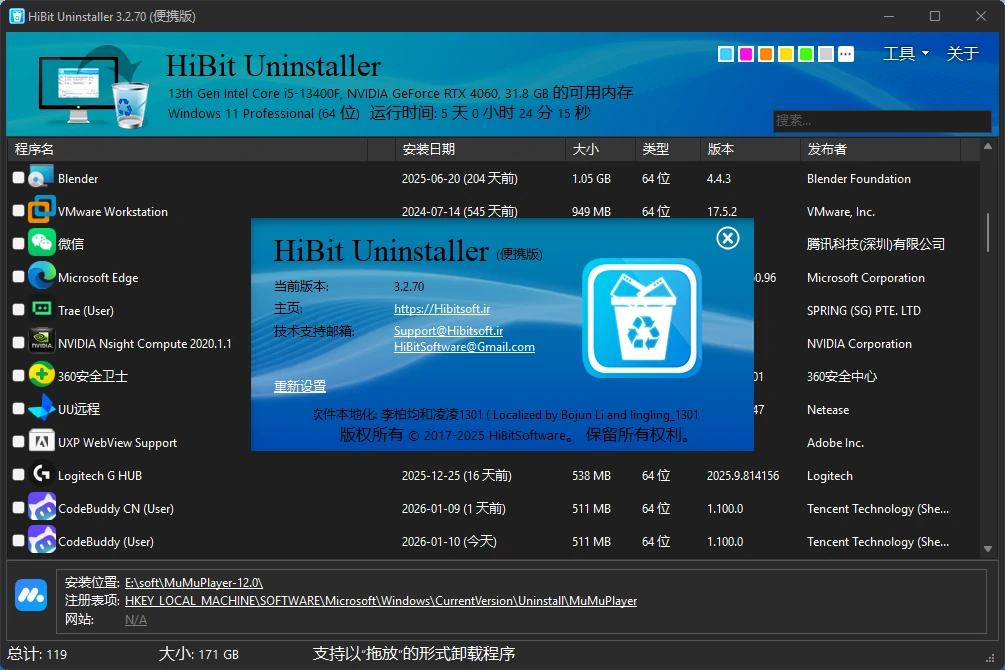
No. When you uninstall HiBit Uninstaller (using its own tool or Windows), it removes its files and registry entries. If you used the portable version, simply delete the folder – nothing is written to the registry.
7. Can I restore something I deleted with the file shredder?
No. The file shredder overwrites data multiple times to make recovery impossible. Always double-check before shredding sensitive or important files. For normal deletion, use the junk cleaner or Windows delete.
8. Does the registry cleaner create a backup?
Yes. Before applying any registry fixes, HiBit Uninstaller automatically prompts you to create a backup (.reg file). You can restore that backup later if something stops working.
9. My program is not listed – what do I do?
If a program is installed but does not appear in HiBit Uninstaller’s list, try refreshing (F5) or restarting the tool. For extremely old or very custom software, use Forced Uninstall and manually select the installation folder.
10. Is it safe to remove Windows Store apps?
Generally yes, but with caution. Removing the Calculator, Camera, or Notepad is fine – you can reinstall them from the Microsoft Store if needed. Do not remove system-critical apps like “Settings” or “Start Menu Experience Host” unless you know what you are doing. HiBit Uninstaller hides most critical apps by default.
Conclusion
HiBit Uninstaller is a hidden gem among Windows freeware. It does one thing extremely well – completely removing software – and adds half a dozen system cleanup tools that many users pay for elsewhere. The forced uninstall feature saves you from broken installers, the batch uninstall speeds up mass cleanup, and the extra tools (registry cleaner, startup manager, browser extension manager) make it a multipurpose maintenance suite.
Unlike many “free” utilities that nag you to upgrade or bundle adware, HiBit Uninstaller is clean, lightweight, and respectful of your PC. Whether you are a casual home user who wants a faster computer or an IT professional managing multiple machines, this tool will save you time and frustration.
If you are tired of leftover files clogging your hard drive or struggling to remove stubborn software, give HiBit Uninstaller a try. Download it from a trusted source like CNET, run the portable version, and experience a truly complete uninstall for the first time.