RunWithAffinity Review- A Simple Tool for CPU Core Management
Read our comprehensive review of RunWithAffinity, a free utility that lets you run programs on a specific CPU core. Discover its features, benefits, and limitations.
Introduction: Understanding CPU Affinity
Modern computers have multiple processor cores, allowing them to run several tasks simultaneously. However, there are times when you might want to control which core a specific program runs on. This is known as “CPU affinity.” RunWithAffinity is a free, lightweight Windows utility that lets you do exactly that. This review explores what CPU affinity is, what RunWithAffinity does, and who might benefit from using it.
What is RunWithAffinity?
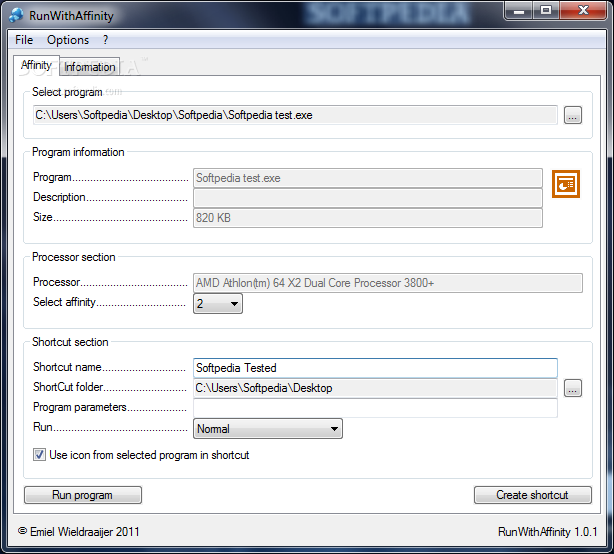
RunWithAffinity is a free, simple Windows utility that allows you to run a program on a specific processor core of your choice. It provides a straightforward graphical user interface (GUI) that makes it easy to select a core and launch an application with that affinity setting.
The software is an alternative to more complex command-line tools like the built-in start /affinity command. It is designed for users who want a simple, click-based method for managing CPU affinity.
What is CPU Affinity?
CPU affinity is the ability to bind or “affinitize” a process to a specific CPU core. By default, the Windows operating system schedules processes to run on any available core to balance the load. Manually setting affinity can be useful in certain situations:
- Isolating Performance-Sensitive Tasks: You can dedicate a core to a critical application to ensure it gets the processing power it needs.
- Troubleshooting: If a program is causing system instability, you can try running it on a specific core to see if it resolves the issue.
- Older Software: Some older programs may run better when restricted to a single core.
Key Features of RunWithAffinity
Single-Core Selection
The application’s primary function is to allow you to select a single processor core on which to run a program. It does not support complex scheduling or multi-core selection.
Simple Graphical Interface
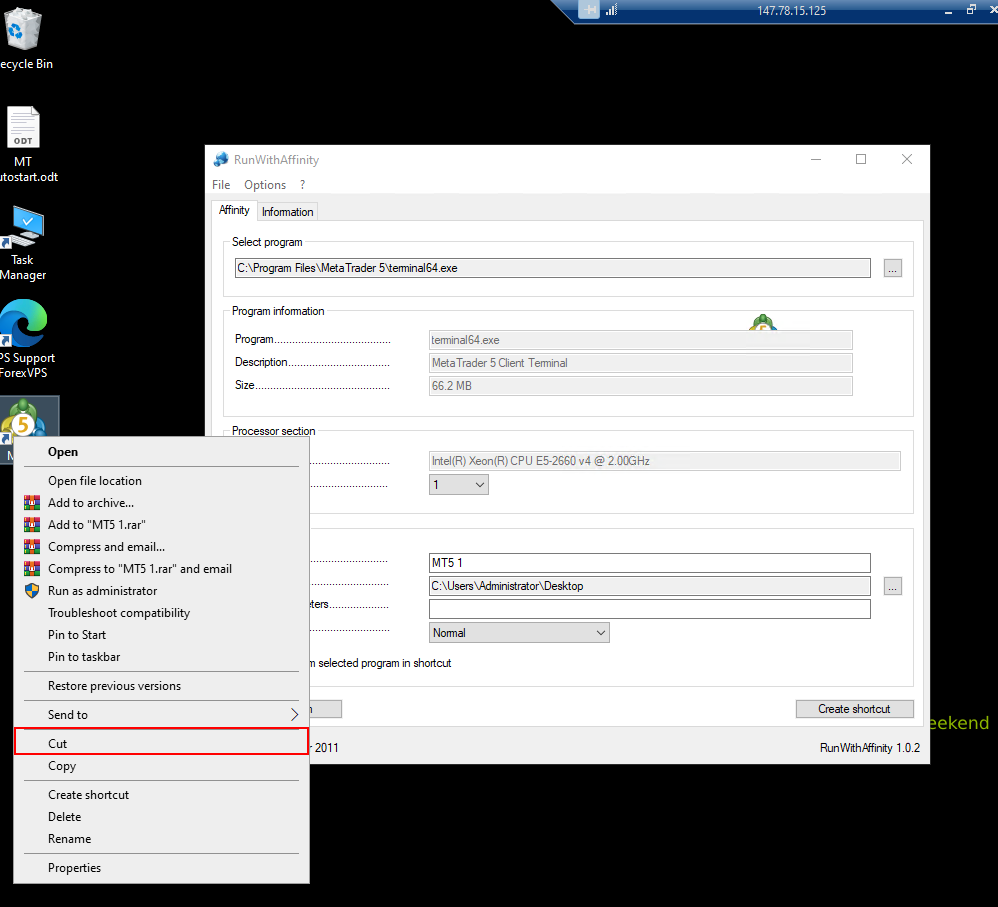
RunWithAffinity replaces the need for complex command-line instructions with a simple, user-friendly window. You can browse for the executable file, choose a core from a drop-down menu, and launch the program.
Customizable Shortcuts
The software allows you to create customized shortcuts that launch a specific program with a preset affinity setting, making it easy to consistently launch the application with your chosen configuration.
Limitations of RunWithAffinity
- Single-Core Only: It only allows you to select a single core. It does not support setting affinity for multiple cores.
- No Advanced Scheduling: It lacks advanced scheduling options like prioritizing processes.
- Manual Shortcut Creation: While it creates shortcuts, you must manually set them up for each program.
- Niche Tool: Its use is limited to a specific, technical audience.
Who Is RunWithAffinity For?
RunWithAffinity is a niche tool for a specific group of users:
- Power Users: Who want finer control over how their system resources are used.
- Gamers: Who may want to dedicate a core to a specific game for slightly better performance.
- Troubleshooters: Who are trying to diagnose issues with specific applications.
- IT Professionals: For testing and system management.
Frequently Asked Questions (FAQs)
1. Is RunWithAffinity free to use?
Yes, RunWithAffinity is completely free to download and use.
2. What is CPU affinity?
CPU affinity is the ability to bind a process to a specific CPU core.
3. Does RunWithAffinity allow me to set affinity for multiple cores?
No, the current version only allows you to select a single core.
4. How do I use RunWithAffinity?
You download the executable, run it, select the program you want to launch, choose a core from the dropdown menu, and click “Run.”
5. Does RunWithAffinity work on Windows 11?
Yes, the software is compatible with a wide range of Windows versions, including Windows 10 and likely Windows 11.
Conclusion: A Simple Solution for a Niche Need
RunWithAffinity is a simple, focused tool that does one thing well: it allows you to launch a program on a specific CPU core. Its graphical interface makes a command-line task more accessible to average users. While its single-core limitation and niche application mean it won’t be useful for everyone, for power users and those troubleshooting specific issues, it offers a practical and straightforward solution.



