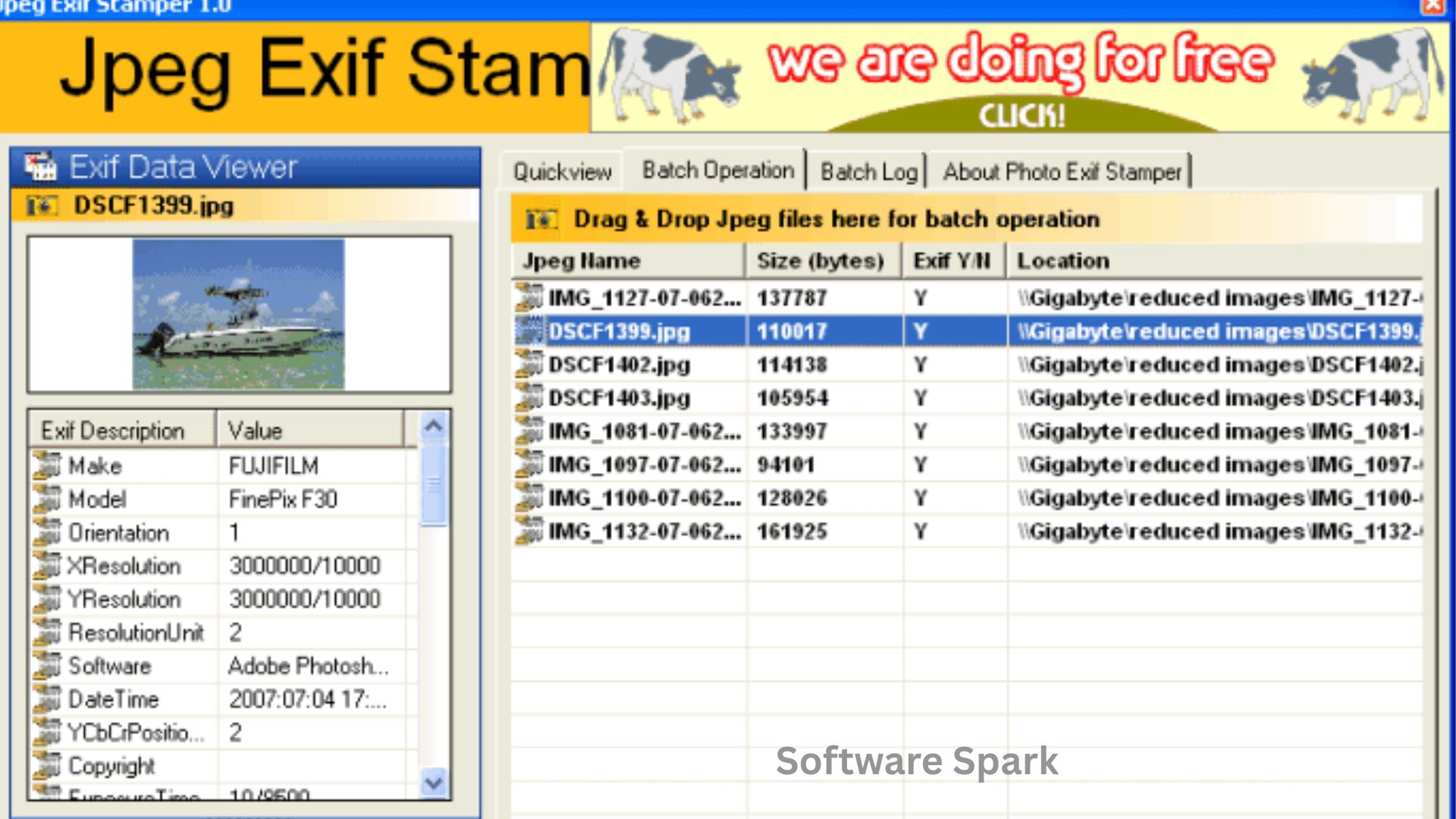
Jpeg Exif Stamper – A Simple Guide to Adding Date Stamps to Your Photos
Do you have hundreds of photos scattered across your computer, all taken with a digital camera, but with no visible date printed on them? Years later, you may find yourself scrolling through folders, unable to remember exactly when that family reunion or that vacation happened. The date is stored somewhere in the file, hidden away in the Exif (Exchangeable Image File Format) data, but it is not visible.
Jpeg Exif Stamper is a free, lightweight Windows utility designed to solve this problem. It is a simple tool that reads the date and time information stored in the Exif data of your Jpeg images and physically stamps it onto the photo itself. By placing a watermark directly onto the image, you ensure that the date is always visible, regardless of what device or software you use to view the file.
This guide will explore the capabilities of Jpeg Exif Stamper. We will cover how it works, its key features, and its practical uses, helping you decide if this is the right tool for your photo organization needs.
Software Overview
Jpeg Exif Stamper is a simple, dedicated Windows application developed for a single purpose: to add a visible date and time stamp to Jpeg images. It achieves this by extracting the timestamp information from the photo’s embedded Exif metadata—the data that digital cameras automatically record with every shot.
The software is designed to be a straightforward, “point-and-shoot” tool for novice users. It does not offer complex editing features or support for a wide variety of file formats. Its focus is on performing one task well: reading Exif data and writing it onto the image.
This makes it an ideal choice for users who want a quick, no-fuss solution to add date stamps to their photos. It is also a helpful tool for organizing and cataloging images, particularly for users who do not have access to advanced photo management software.
Main Features with Detailed Descriptions
1. Leveraging Embedded Exif Data
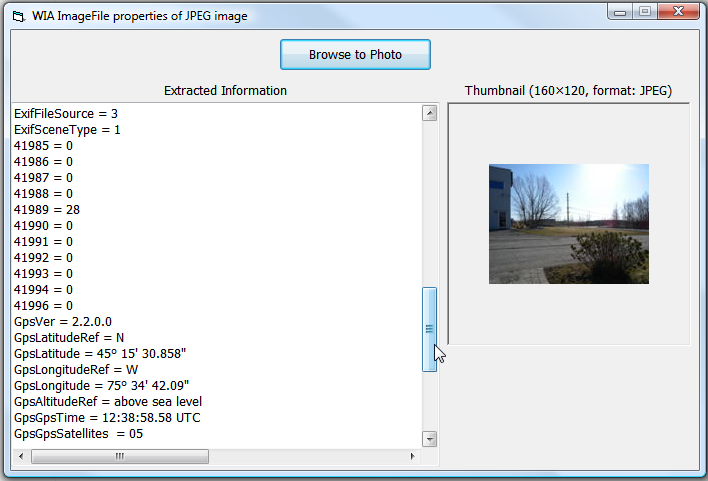
The core of Jpeg Exif Stamper’s functionality is its ability to read Exif data. Exif (Exchangeable Image File Format) is a standard that stores metadata inside image files. Digital cameras automatically embed this data, which includes information like the date and time the photo was taken, camera settings, and sometimes even GPS coordinates.
When you process an image with Jpeg Exif Stamper, the software reads this metadata, extracts the date and time, and creates a text string based on your preferences. This ensures the timestamp is accurate, as it comes directly from the camera’s internal clock.
2. Customizable Date/Time Format
The software allows you to customize the format of the date and time stamp. You are not locked into a single, rigid style.
You can likely choose from common date and time formats, such as:
- MM/DD/YYYY
- DD/MM/YYYY
- YYYY-MM-DD
- Including or excluding the time of day.
This flexibility ensures the stamp matches your personal preference or the formatting standards you use for your photo archives.
3. Simple Batch Processing
While the software is basic, it allows users to process multiple images at once. You can select a folder or a group of images and apply the date stamp to all of them in a single operation.
This batch processing feature is a significant time-saver. Instead of manually stamping each individual photo, you can process an entire folder of vacation photos in a few clicks.
4. Focus on Digital Camera Images
The software is specifically designed for images from digital cameras that contain embedded Exif data. It relies on this data to function.
This means it will work seamlessly with photos taken from a wide range of digital cameras, from professional DSLRs to compact point-and-shoot models.
System Requirements
Jpeg Exif Stamper is a legacy application with very minimal system requirements.
| Requirement Category | Minimum Specification |
|---|---|
| Operating System | Windows 98, ME, NT, 2000, XP, 10 |
| Additional Requirements | None |
How to Install Jpeg Exif Stamper
Installing Jpeg Exif Stamper is a quick and simple process.
Step 1: Download the Installer
Go to the trusted download page (such as the CNET link provided). Click the “Download Now” button and save the file to your computer.
Step 2: Scan the File
Before opening, it is good practice to scan the downloaded .exe file with your antivirus software to ensure it is safe.
Step 3: Run the Installer
Double-click the downloaded file to run the installer. If Windows asks for permission to run the program, click “Yes” or “Allow.”
Step 4: Accept the License Agreement
Read the license agreement and click “I Agree” to proceed.
Step 5: Choose Installation Folder
You can keep the default installation folder or choose a custom location. Click “Next” or “Install.”
Step 6: Wait for the Installation
The installation process will copy the necessary files to your computer.
Step 7: Launch the Software
Once the installation is complete, you will have the option to launch the software.
Step 8: Start Stamping
The program will open. You can now load your Jpeg files, choose your date format, and start adding watermarks.
Pros and Cons Table
To provide a balanced view, here are the strengths and weaknesses of Jpeg Exif Stamper.
| Pros (Advantages) | Cons (Disadvantages) |
|---|---|
| Completely free to use. | Limited to Jpeg files: Does not support other image formats. |
| Simple and easy to use: Minimal learning curve. | Requires Exif data: Will not work on images without embedded Exif information. |
| Automates a repetitive task: Batch processing saves time. | No advanced customization: Limited font and positioning options. |
| Leverages accurate camera data: Uses the date and time from the original file. | Outdated interface: The software has a legacy look and feel. |
| Lightweight: Minimal system resource usage. | Potential for accidental overwriting: The tool modifies the original file. |
Practical Use Cases and Benefits
Use Case 1: Organizing a Photo Archive
Scenario: You have thousands of photos from the past decade. You want to sort them chronologically, but the file names are not descriptive.
Benefit: You process the entire folder in Jpeg Exif Stamper. The software adds the date to each photo, allowing you to sort them easily by the visible date stamp.
Use Case 2: Preparing Photos for Printing
Scenario: You want to print a set of family photos to put in a physical album. You want the date to be visible on the print.
Benefit: You use the tool to stamp the date onto each photo before sending them to the printer. This ensures the date is permanently attached to the physical memory.
Use Case 3: Simple Evidence or Record Keeping
Scenario: You are a professional who needs to keep a dated visual record of your work (e.g., in construction or property management).
Benefit: You use Jpeg Exif Stamper to add timestamps to your site photos, creating a clear, permanent record of when each image was taken.
Frequently Asked Questions (FAQ)
1. What is Exif data?
Exif (Exchangeable Image File Format) is a standard that stores metadata inside image files, such as the date, time, camera settings, and sometimes GPS coordinates. Digital cameras automatically embed this data into the images they capture.
2. Does Jpeg Exif Stamper work with all image formats?
No, this software is specifically designed for Jpeg files. It will not work with other formats like PNG, GIF, or BMP.
3. Will the tool work on images I edit in Photoshop or other editors?
It depends. The software requires the original Exif data to be present. If your photo editing software strips this data when saving the file, Jpeg Exif Stamper will not be able to read the date and time.
4. Can I change the font or location of the date stamp?
The software offers customization of the date and time format but may offer limited options for changing the font, size, or position of the watermark.
5. Does the tool modify the original file?
Yes, the tool modifies the original file by adding the visible date watermark directly onto the image.
Conclusion
Jpeg Exif Stamper is a straightforward and focused utility that serves a specific and valuable purpose: adding visible date stamps to Jpeg images by reading their Exif metadata. It is a tool that automates a tedious task, helping users organize and preserve their digital memories.
While the software is limited in scope—it only works with Jpeg files and requires embedded Exif data—it excels at what it does. For users who need a simple, free, and effective way to add date stamps to their digital camera photos, it is a perfect solution. It is a reminder that sometimes the best tools are the ones that do one thing and do it well.
If you have a collection of Jpeg images that need to be date-stamped, give Jpeg Exif Stamper a try.



