Nitro PDF Reader – A Powerful Free PDF Solution
Introduction
Portable Document Format (PDF) files have become an indispensable part of modern digital life, serving as the standard for sharing documents across different platforms and devices. Whether you’re a business professional handling contracts, a student reviewing lecture notes, or a home user managing receipts and forms, having reliable PDF software is essential.
Nitro PDF Reader has emerged as a notable player in this space, offering a comprehensive set of features that go far beyond simple document viewing. Available as a free tool for Windows users, it has gained popularity for its combination of robust functionality and user-friendly design . This software aims to provide a complete document management solution, enabling users to view, create, annotate, and convert PDF files with ease.
This article explores Nitro PDF Reader in depth, examining its core features, user experience, strengths and weaknesses, and how it compares to other PDF solutions on the market.
What is Nitro PDF Reader?
Nitro PDF Reader is a free multi-functional PDF application developed by Nitro Software, a global leader in PDF and electronic signature solutions . Unlike basic PDF viewers that only allow you to open and read documents, Nitro Reader provides a suite of tools for interacting with and managing PDFs, including creation, annotation, conversion, and form filling.
The software was designed to be a more affordable alternative to Adobe Acrobat, providing many of the same professional-grade features without the high price tag . The free version covers essential document workflows for most users, while paid versions like Nitro Pro and Nitro PDF Pro offer advanced editing, OCR, and e-signature capabilities for business users .
Key Features of Nitro PDF Reader
Nitro PDF Reader’s strength lies in its extensive feature set, which bridges the gap between a basic reader and a full-featured editor.
PDF Creation and Conversion
One of the most powerful aspects of Nitro PDF Reader is its ability to create PDFs from over 300 different file formats . This is achieved through several methods:
- Nitro PDF Creator: A virtual printer driver that allows you to convert any printable document to PDF. Simply select “Nitro PDF Creator” from the print menu in any Windows application to save it as a PDF .
- Drag-and-Drop Creation: You can create a PDF instantly by dragging any file onto the Nitro Reader desktop icon, which automatically opens the resultant PDF in the application .
- Create from File: The software offers in-application functionality to create PDF from any file, with predefined profiles for different use cases like Web-ready or Print-ready documents .
- PDF to Plain Text Conversion: Nitro Reader allows you to repurpose text by converting any PDF file to plain text format, controlling output options like paragraph retention and line-width .
Annotation and Collaboration Tools
Nitro PDF Reader is equipped with a comprehensive annotation toolkit that facilitates document review and collaboration :
- Sticky Notes: Add virtual notes anywhere within a document to draw attention to specific areas or include special instructions .
- Markup Text: Highlight, cross-out, and underline text, allowing you to draw attention to sections requiring revision. You can also add comments to these highlights .
- Type Text Anywhere: This tool lets you add text directly onto the pages of a document, in whatever font, size, and color you specify—useful for filling out static forms or expanding on content .
- Comments Pane: An easily digestible list of all markups, comments, and annotations within a document. Users can reply to, sort, and manage comments, facilitating easy-to-follow document revision .
- Snapshot Tool: The Snapshot tool allows you to select any on-screen area, regardless of content, and copy it directly to your Clipboard for quick reuse of images or text .
Extraction Capabilities
The software provides useful tools for extracting content from PDFs:
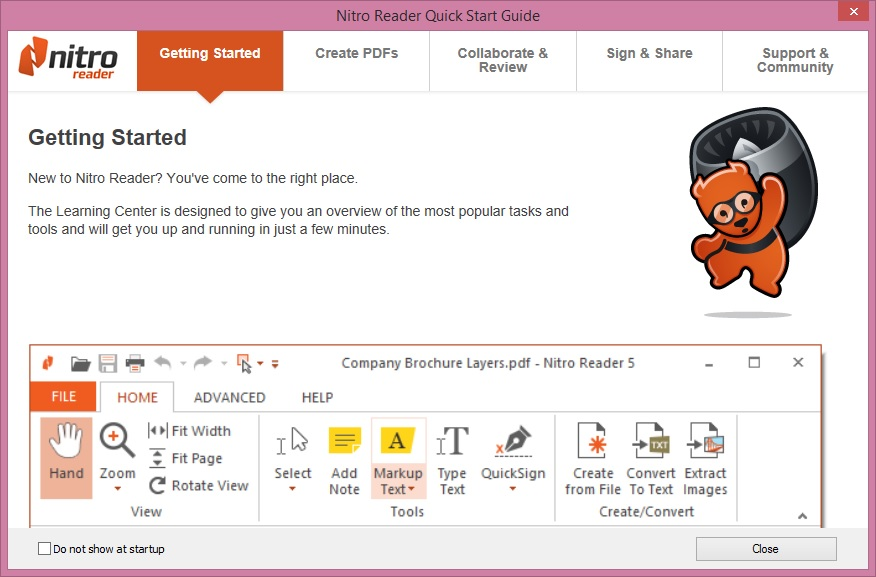
- Extract Images: Save all images contained in a PDF document as separate files in formats like BMP, JPG, PNG, and TIF. The intelligent extraction can choose the most appropriate format for each image .
- Extract Text: Save PDF text into a plain text file, removing formatting for easy use in other applications .
Navigation and Viewing
Nitro Reader offers robust tools for navigating and viewing documents:
- Tabbed Viewing: Work with multiple PDF files simultaneously in a tabbed interface, enabling easy switching between documents .
- Intelligent Display Panes: Navigation panes like Bookmarks, Comments, Signatures, and Attachments are context-intelligent. For example, if you open a PDF containing bookmarks, the Bookmarks pane automatically becomes visible .
- Page Views: Select from Single, Continuous, Facing, and Facing Continuous views to best suit the document you’re viewing .
- Full-Screen View: For the closest experience to paper, Full Screen mode displays the PDF with no extraneous functionality or content .
- Search Functionality: Quickly find text in larger documents with keyboard shortcuts or the Find box .
Forms and Signatures
The software’s form and signature features represent a significant advantage over basic PDF readers:
- Fill and Save Forms: Unlike some solutions that force you to print or scan filled forms, Nitro Reader allows you to save any content entered in PDF form fields to retain an electronic copy .
- Fill Static Forms: Even if a PDF wasn’t properly set up as a form, the Type Text tool allows you to fill it out .
- QuickSign Tool: Add a scanned image of your signature, then place it anywhere in the document. The signature can be resized and moved before embedding .
- Protect Signing: Add multiple signatures for multiple users and password-protect them individually to prevent misuse .
Security Features
Nitro PDF Reader includes several security-focused features:
- Restrict Web Access: Disable internet interactivity from your PDF files or specify a list of trusted sites .
- Disable JavaScript: Prevent unauthorized JavaScript-based attacks by disabling JavaScript completely .
- Security Notifications: When opening PDF files with additional properties such as security restrictions or digital certificates, you get notified immediately .
User Interface and Experience
Familiar Microsoft Office-Style Ribbon
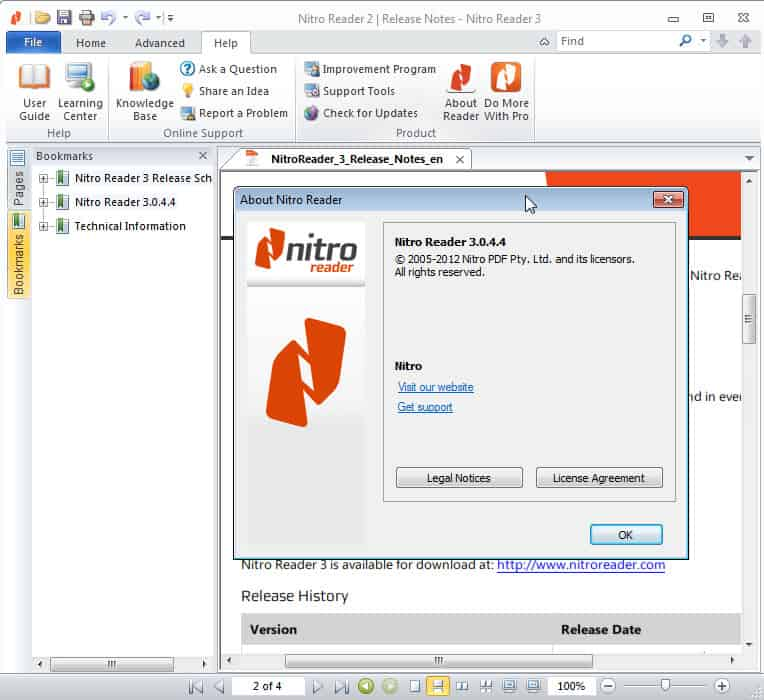
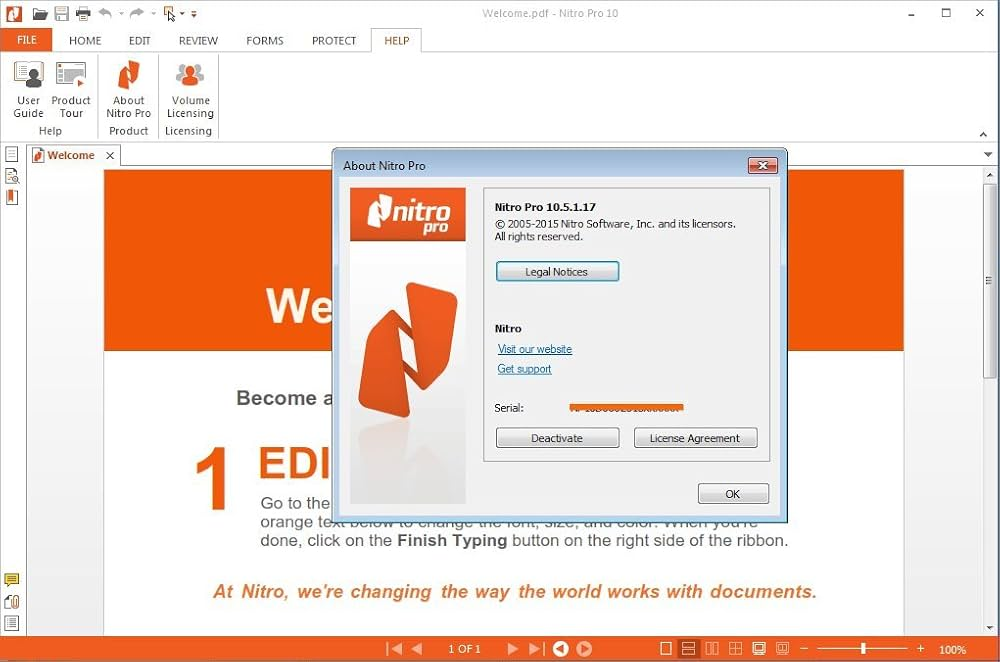
Nitro PDF Reader utilizes a Microsoft Office-style Ribbon interface, making it immediately familiar to users of Word, Excel, and PowerPoint . Tasks and tools are separated into tabs, grouped by functionality, and represented graphically with easy-to-understand text labels. This design reduces the learning curve and allows users to start working productively within minutes .
Quick Access Toolbar
The Quick Access Toolbar (QAT) allows you to create easily accessible shortcuts to the tools you use most frequently, providing constant access to core functionality .
Extended Tooltips
Extended tooltips on mouse-overs give you a fast way to learn about each tool without having to leave the application or search for help elsewhere .
Compatibility and Integration
- Browser Integration: View PDF files directly inside Mozilla Firefox, Internet Explorer, and Google Chrome .
- Email Preview: Users of Windows 7 and Vista can use Nitro Reader’s preview technology to view attached PDF files from directly within the Reading pane in Microsoft Outlook .
- Windows Explorer Preview: Preview the content of any PDF file from within Windows Explorer .
Performance and Reliability
Speed and Resource Usage
One of the frequently praised aspects of Nitro PDF Reader is its performance. Users report that the software runs smoothly without occupying a lot of memory, even when working on multiple PDFs . Reviews note that it’s lighter-weight than Adobe Acrobat, taking up less space and loading faster .
However, some users have reported occasional stability issues, including freezing when many PDFs (six or more) are opened simultaneously, or crashes when working with newer hardware . This has been noted as a particular concern by some professional users transitioning to the latest versions .
Cross-Platform Support
Nitro PDF Reader is primarily designed for Windows, supporting various versions including Windows 7, 8, and 10 . For macOS users, Nitro provides separate applications like Nitro PDF Pro, which are developed independently and may have different features and stability levels .
Nitro PDF Reader vs. Alternatives
Nitro PDF Reader vs. Adobe Acrobat Reader
Adobe Acrobat Reader is arguably the most well-known PDF reader, offering a free tier for basic viewing and annotation. The comparison between Nitro and Adobe reveals some important distinctions:
| Feature | Nitro PDF Reader | Adobe Acrobat Reader |
|---|---|---|
| Price | Free | Free (basic version) |
| PDF Creation | Yes, from 300+ formats | Limited |
| PDF Editing | Basic text additions | Limited |
| OCR | No | No |
| E-Signatures | Yes | Yes |
| Interface | Office-style Ribbon | Traditional Adobe interface |
| Forms | Fill and save | Fill only (print required) |
According to user reviews, many find Nitro to be a better alternative, particularly for its PDF creation and form-saving capabilities . As one user noted, “Nitro is better than Adobe PDF … because of one specific feature that is pdf to word conversion” .
For businesses considering a full replacement of Adobe Acrobat Pro, Nitro offers similar functionality at up to 30% lower cost, with transparent pricing and 24/7 expert support .
Nitro vs. Foxit Reader
Foxit Reader is another popular free PDF reader known for its lightweight design and annotation tools. Key differentiators include:
- PDF Creation: Nitro’s virtual printer driver offers more comprehensive PDF creation .
- Interface: Foxit uses a traditional tool ribbon, while Nitro mimics the Microsoft Office style .
- Performance: Both are considered lightweight and fast, though experiences vary .
Nitro vs. Sumatra PDF
For users seeking a truly minimalist PDF reader, Sumatra PDF remains an option. However, it lacks the creation, annotation, and conversion features that make Nitro PDF Reader a comprehensive tool. According to reviews, for those who need anything beyond pure viewing, Nitro is “insanely good” compared to more basic alternatives .
User Reviews and Feedback
Positive Feedback
- Comprehensive Feature Set: Users consistently praise the range of features available in the free version, noting that it includes capabilities typically found in premium applications .
- Ease of Use: The familiar interface and intuitive tools make it easy for both beginners and experienced users to navigate .
- PDF Creation: The ability to create PDFs from any printable file via the virtual printer is a standout feature .
- Cost-Effectiveness: Many users cite Nitro as a more affordable alternative to Adobe Acrobat, with some noting they’ve switched their entire businesses and haven’t looked back .
- Electronic Signatures: The QuickSign tool has been highlighted as “so fast and easy” for signing documents .
Critical Feedback
- Compatibility Issues: Some users have experienced crashes and freezes on newer hardware, suggesting the software is best optimized for older systems .
- Learning Curve: Despite the Office-like interface, some users found the user experience “unintuitive” and struggled with certain workflows .
- Multilingual Concerns: Reports of issues with Unicode character display and non-English language support .
- Stability Concerns: Frequent mentions of freezing or not responding when handling complex operations or numerous open files .
- Advanced Editing Limitations: While comprehensive for a free reader, more advanced features are lacking for professionals with specialized needs .
Who Should Use Nitro PDF Reader?
Ideal Users
- Students: For reviewing lecture notes, filling out assignment forms, and marking up research papers .
- Small Business Owners: The ability to create, fill, and sign PDF forms without purchasing expensive software .
- Office Professionals: Integrating with the Microsoft Office ecosystem for seamless document management .
- Freelancers: Managing contracts, proposals, and client documents efficiently .
- Home Users: Managing personal documents, receipts, and forms with ease .
Less Suitable For
- Users Requiring Extensive Advanced Editing: Those needing OCR, advanced formatting, or specialized document manipulation may need the paid Nitro Pro or a different solution .
- Mac Users: Native Nitro PDF Pro is available for Mac, but according to user reviews, the Windows version remains more stable and feature-rich .
- Citrix Environment Users: Reports indicate print-to-PDF functionality issues in Citrix-led environments .
Getting Started with Nitro PDF Reader
System Requirements
The software is designed to run on a wide range of Windows systems with very modest resource requirements:
- Operating Systems: Windows 10, Windows 8, and Windows 7
- File Size: Approximately 0.99 MB to 1.51 MB (though some sources report larger sizes of up to 54.30 MB for more recent versions)
- Memory: Minimum 1GB RAM; 8GB recommended for complex projects
Installation
Installation is straightforward:
- Download the installer from the Nitro website or a trusted software repository .
- Run the installer and follow the on-screen instructions.
- The installation will include the Nitro PDF Creator virtual printer automatically .
First Use Tips
- Explore the Ribbon: Familiarize yourself with the tabs to quickly access tools.
- Set Up the Quick Access Toolbar: Add your most-used tools for faster workflow .
- Learn Keyboard Shortcuts: Keyboard shortcuts for tools like ‘Find’ can improve efficiency .
- Use the Previews: Take advantage of integration with Windows Explorer and Outlook for a seamless experience .
Conclusion
Nitro PDF Reader stands out as a comprehensive and capable free solution for managing PDF documents. Its combination of familiar interface design, robust feature set, and accessible pricing—including a generous free version—makes it an attractive alternative to both basic readers and more expensive professional suites.
The software excels in key areas such as document creation via virtual printing, annotation, form filling with saving capabilities, and electronic signatures. For most users, it offers more than enough functionality without requiring a costly upgrade. The Microsoft Office-style interface lowers the barrier to entry, allowing users to become productive with minimal training.
However, potential users should be aware of certain limitations. Stability and compatibility concerns have been noted, particularly when working on newer hardware or handling complex operations. Performance can also be affected by opening many PDFs simultaneously . For users requiring advanced features like optical character recognition (OCR) or sophisticated editing, the paid Nitro Pro version offers expanded capabilities .
Despite these challenges, Nitro PDF Reader remains a compelling choice in the PDF software landscape. For students, professionals, small business owners, and home users alike, it provides a powerful, cost-effective solution for managing PDF documents in daily workflows. Its combination of features, usability, and value continues to make it a strong contender in the PDF reader market.
Frequently Asked Questions
Is Nitro PDF Reader completely free?
Yes, Nitro PDF Reader is a free product that provides robust features for viewing, annotating, creating, and converting PDFs. While advanced features like OCR, automated form creation, and AI tools are reserved for paid business plans (Nitro Pro and Nitro PDF Pro), the free version offers more than enough functionality for most personal and professional use cases .
What makes Nitro PDF Reader better than Adobe Acrobat Reader?
Nitro PDF Reader distinguishes itself with its superior PDF creation capabilities, including a virtual printer driver that allows conversion from over 300 file formats . It also allows users to fill and save PDF forms, whereas the free version of Adobe Reader only permits form filling without saving . The Microsoft Office-style interface makes it more intuitive for many users accustomed to the Office suite . Additionally, some users find the software to be lighter-weight and faster than Adobe solutions .
Does Nitro PDF Reader support electronic signatures?
Yes, the QuickSign tool allows users to create and apply digital signatures easily. You can add a scanned image of your signature and place it anywhere in the document. The signature can be resized and moved before embedding, making it secure and professional-looking .
Can I edit text in a PDF using Nitro PDF Reader?
While the free version of Nitro PDF Reader allows basic text additions using the “Type Text” tool, comprehensive editing of existing text and images requires the paid Nitro Pro version . The free reader is more focused on annotation, highlighting, and form filling rather than full editing . For basic edits like adding text boxes or comments, the free version is sufficient.
Why does Nitro PDF Reader sometimes crash or freeze on my computer?
Some users report instability when working with multiple PDFs (six or more) simultaneously, using the software on newer hardware, or handling complex operations like large conversions . The software is designed primarily for older Windows systems. To minimize issues, ensure you’re using the latest version, close unnecessary applications, and avoid opening too many documents at once . Some crashes may also relate to the PDF itself if it contains complex elements .