Free Snipping Tool – Screen Capture Solution for Windows Users
Introduction
In today’s visually-driven digital world, the ability to quickly capture, annotate, and share what’s on your screen has become an essential part of daily computing. Whether you’re a professional creating documentation, a teacher preparing educational materials, a gamer sharing memorable moments, or simply someone trying to explain a technical issue to a friend, a reliable screen capture tool is indispensable.
Enter the Free Snipping Tool, a comprehensive screen capture application that goes far beyond the basic functionality of traditional snipping tools. This powerful software transforms the simple act of taking a screenshot into a complete visual communication workflow, combining multi-mode capture, annotation tools, cloud integration, optical character recognition (OCR), screen recording, and even AI-powered image analysis into a single, unified platform.
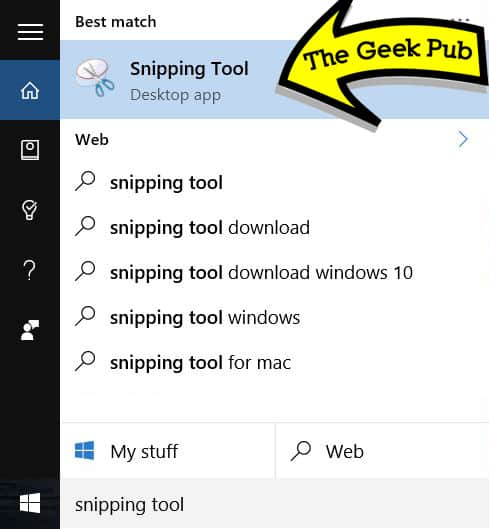
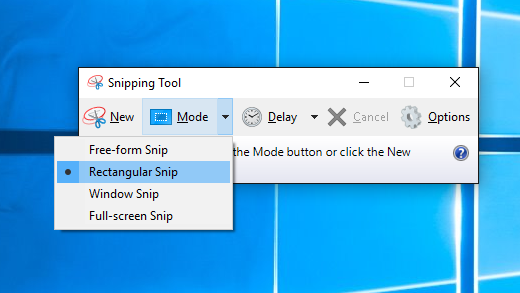
What sets this tool apart from the built-in Windows Snipping Tool is its feature-rich approach to screen capture. While the basic Windows tool allows you to take simple rectangular screenshots, Free Snipping Tool expands this concept dramatically. It lets you capture scrolling web pages, record videos of your screen, annotate images with a comprehensive set of markup tools, and instantly upload your captures to the cloud for sharing.
With over 986,000 downloads and a perfect 5-star user rating, this application has clearly resonated with users who appreciate its blend of power and simplicity. This article provides a comprehensive exploration of the Free Snipping Tool, examining its features, comparing it to alternatives, and helping you determine whether it’s the right screen capture solution for your needs.
What is the Free Snipping Tool?
An Overview of the Application
The Free Snipping Tool is a versatile desktop application for Windows that serves as a complete screen capture and annotation solution. Unlike the basic snipping tool included with Windows, which offers limited functionality, this application provides a professional-grade suite of features that rivals dedicated screen capture software.
The application is designed to be lightweight and efficient, running on Windows 7 through Windows 11 with the .NET Framework 4.5 as its only requirement. Despite its modest system demands, it packs an impressive array of features that make it suitable for both casual users and professionals.
The Evolution from Simple Snips to Visual Communication
The journey from simple screenshot tools to applications like Free Snipping Tool reflects the changing nature of how we communicate. In the past, taking a screenshot was often a multi-step process: capture the screen, open an image editor, paste the screenshot, annotate it, save it, and then attach it to an email or upload it somewhere.
The Free Snipping Tool streamlines this entire workflow into a single, seamless experience. You capture, edit, annotate, and share all from within the same application. This unified approach saves time and eliminates the need for multiple software tools.
Who Uses This Tool?
The Free Snipping Tool appeals to a wide range of users:
- Business Professionals: Create documentation, capture error messages, and annotate screenshots for reports.
- Educators and Teachers: Prepare visual learning materials and capture content for presentations.
- Students: Save lecture slides, capture research materials, and create study guides.
- IT Support Personnel: Capture and annotate screenshots to illustrate technical issues.
- Content Creators: Create visual content for websites, social media, and marketing materials.
- Everyday Users: Save interesting content, share screenshots with friends and family, and document online activities.
Key Features and Capabilities
Flexible Capture Modes
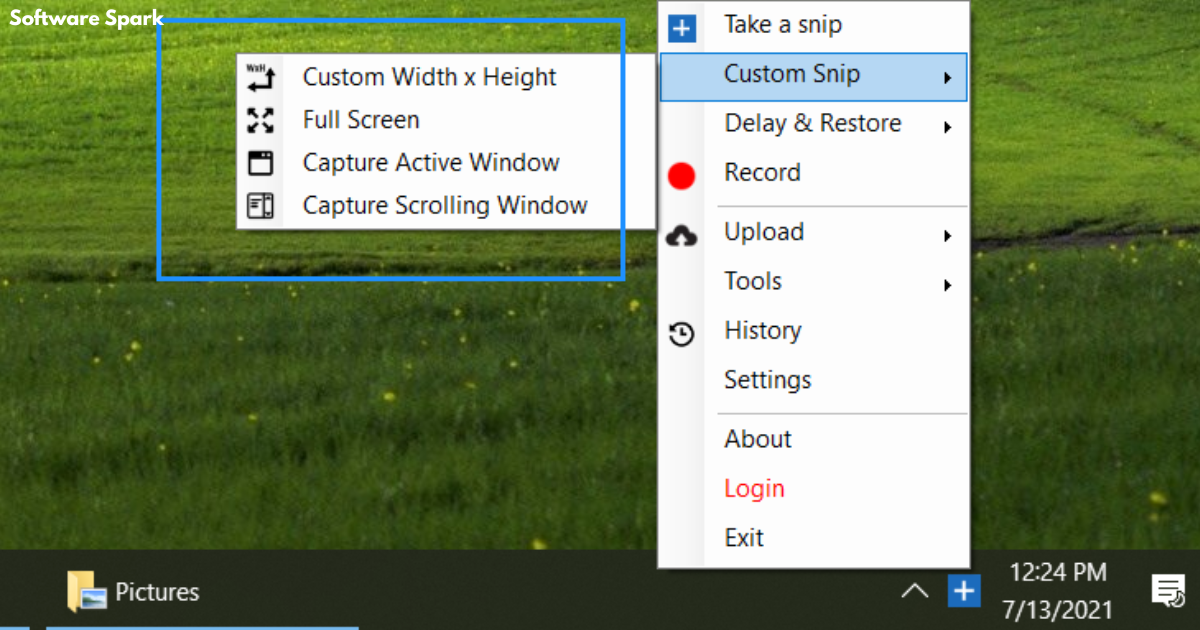
The Free Snipping Tool offers multiple capture modes to accommodate virtually any screen capture need.
Scrolling Window Capture: One of the standout features is the ability to capture scrolling windows, including entire web pages, long documents, or any window that extends beyond the visible screen area. This eliminates the need to take multiple screenshots and stitch them together manually. When you need to capture an entire webpage or a lengthy document, the scrolling window capture automatically captures the content as you scroll.
Free-Form Region Selection: The traditional rectangular capture is often limiting. The Free Snipping Tool’s free-form capture allows you to select any irregular shape, drawing around the content you want to capture. This is particularly useful when you want to isolate a specific area with an irregular outline.
Full-Screen Capture: This mode captures everything on your display, including multiple monitors if you have them. It’s perfect for capturing your entire desktop setup or for quickly taking a screenshot of everything visible.
Active Window Capture: This mode intelligently captures only the currently active window, automatically excluding other windows and background elements. It’s ideal for capturing a specific application without any clutter.
Integrated Editor and Annotation Tools
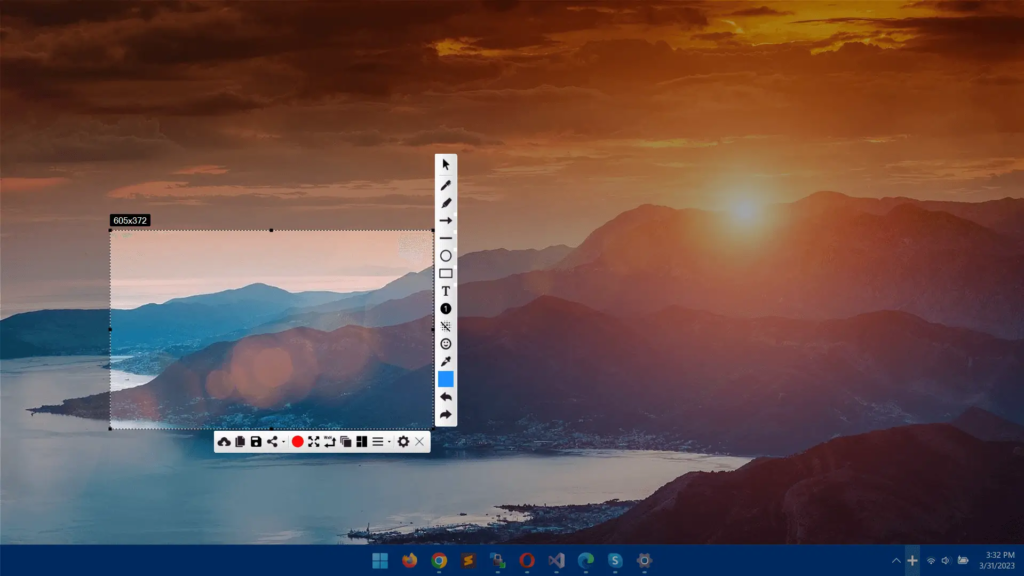
Once you’ve captured an image, the Free Snipping Tool’s built-in editor allows you to refine and annotate it without switching to another application.
Layered Markup Tools: The annotation tools go far beyond simple drawing. You can add:
- Arrows and lines to point out specific areas
- Text blocks for adding explanations or labels
- Geometric shapes like rectangles, circles, and squares
- Step numbering for creating sequential instructions
- Emoji overlays for adding personality or emphasis
- Blur effects for obscuring sensitive or personal information
Edits are applied directly to the captured image canvas, making the process simple and intuitive. You can see your annotations immediately and adjust them as needed.
Export Options: Once you’re satisfied with your annotated image, you can export it in multiple formats. Common image formats are supported, making it easy to use your captures anywhere. Additionally, multiple snips can be compiled into a single PDF document, which is valuable for creating reports or presentations.
Collage Creation: The collage feature allows you to merge multiple snips into a single image. This is perfect for side-by-side comparisons or combining different parts of a larger process.
Watermark Controls: For branding or copyright purposes, you can add watermarks to your captures. This is especially valuable for businesses or content creators who want to protect their images.
Screen Recording Capabilities
Screen recording is becoming increasingly important for tutorials, demonstrations, and presentations. The Free Snipping Tool includes the ability to produce both video and GIF outputs.
Video Recording: You can record your screen with audio (if you have a microphone) to create tutorials, walkthroughs, or any other video content. The video recording is smooth and captures the full screen or a selected region.
GIF Recording: For shorter clips, animated GIFs are often more convenient than videos. You can record short screen actions and export them as GIFs, which are easily shared on social media, embedded in emails, or used in presentations.
Cloud Integration and Sharing
The Free Snipping Tool integrates with popular cloud services to simplify sharing.
Direct Cloud Uploads: You can upload your captures directly to Google Drive, Dropbox, and ImgHostr. This integration eliminates the need to save files locally before uploading, significantly streamlining the sharing process.
Instant Shareable Links: Once a capture is uploaded, a shareable URL is generated automatically. This is perfect for sharing with colleagues, clients, or friends without having to attach large image files to emails.
External Storage and Hosting: The tool generates shareable links through external storage services and its own hosting platform. This provides flexibility in how and where you host your captured images.
Optical Character Recognition (OCR)
OCR technology is a powerful addition that extracts text from images. The Free Snipping Tool includes built-in OCR functionality, allowing you to capture text from images and convert it to editable digital text.
Benefits of OCR:
- Text Extraction: You can capture an image containing text and extract that text for editing or searching.
- Document Conversion: Convert screenshots of documents into editable text.
- Data Extraction: Easily capture text from web pages, error messages, or any other on-screen content.
AI-Powered Image Analysis
Recent updates have introduced “Chat with Snip,” a feature enabling AI-based analysis of captured images through an embedded conversational interface. This feature streamlines the visual workflow by allowing you to interact with your captures in intelligent ways.
Potential Applications:
- Content Understanding: Ask the AI what’s shown in the image, and receive detailed descriptions.
- Contextual Analysis: Analyze the content of the image and suggest related information.
- Workflow Automation: Generate action items based on the captured image’s content.
- Text Summarization: Summarize text that you’ve captured from longer documents.
The AI analysis, however, is limited to the captured image context, focusing on understanding what’s within the image rather than accessing broader knowledge.
QR Code Generation
The ability to generate QR codes is a unique feature that bridges the physical and digital worlds. You can create QR codes directly from your captures, making it easy to share links or information in a format that can be scanned with a smartphone.
The User Experience
Ease of Use
Despite its impressive feature set, the Free Snipping Tool is designed to be accessible to users of all skill levels. The interface is clean and logical, with common functions accessible from the main toolbar. Users consistently describe the tool as “very simple to use,” with a one-click interface for common actions.
The learning curve is gentle. Most users can start capturing and annotating screenshots within minutes of installation, even if they’ve never used a professional screen capture tool before.
Performance
The application is designed to be lightweight, with minimal system requirements. It runs quickly and responsively, even on older hardware. The low system impact is particularly appreciated by users who frequently capture screenshots while running other applications.
Customization
While the tool focuses on simplicity, it does offer customization options that appeal to more advanced users. You can adjust settings for capture behavior, output formats, and cloud service integration.
Practical Applications
For Business Professionals
The Free Snipping Tool is invaluable for creating documentation and presentations. You can capture screenshots of software interfaces, annotate them to highlight key features, and compile them into PDF documents for training or marketing materials.
The instant sharing capability is particularly useful for remote teams. You can capture a screenshot, annotate it, upload it, and share the link with colleagues in seconds, all without leaving the application.
For Educators and Students
Teachers can capture content from the web or from software applications, annotate it to explain concepts, and share it with students. The video recording feature is ideal for creating online lessons or tutorials.
Students can save lecture slides, capture research materials, and create study guides. The OCR functionality is particularly useful for extracting text from images of slides or documents.
For IT Support
IT professionals can capture error messages and system configurations, annotate them with explanations, and share them with team members or end-users. The video recording is useful for demonstrating solutions to common problems.
For Content Creators
Bloggers, social media managers, and marketers can create visual content for their platforms. The free-form capture, annotation tools, and collage features allow for the creation of engaging visuals. The ability to generate QR codes is useful for connecting offline and online content.
For Everyday Users
Whether you want to save an interesting social media post, capture a funny moment in a video, or show a friend how to navigate a website, the Free Snipping Tool makes the process simple and fast.
Pros and Cons of the Free Snipping Tool
Advantages
- Comprehensive Feature Set: The tool combines multiple capture modes, annotation, editing, cloud sharing, OCR, screen recording, and AI analysis in one package.
- Ease of Use: Despite its powerful features, the interface is simple and intuitive, accessible to users of all skill levels.
- Free to Use: The application is available at no cost, making it accessible to everyone.
- Cloud Integration: Direct uploads to Google Drive, Dropbox, and other services streamline the sharing process.
- Flexible Capture Options: Including scrolling windows, free-form regions, full screen, and active windows, gives you complete control.
- Lightweight Performance: The tool runs efficiently without consuming excessive system resources.
Potential Drawbacks
- Dependence on External Services: Cloud uploads and sharing links rely on external platforms, which may have their own terms of service and limitations.
- AI Analysis Limitations: The AI features are limited to analyzing the content within the captured image.
- Windows Only: The tool is designed specifically for Windows, which means macOS and Linux users will need to find alternatives.
- No Advanced Image Manipulation: While the annotation tools are comprehensive, the tool does not include advanced image manipulation layers found in dedicated graphics editors.
Free Snipping Tool vs. Built-in Windows Tools
Windows Snipping Tool Comparison
The traditional Windows Snipping Tool that comes with Windows provides basic functionality:
- Rectangular and free-form capture
- Basic annotation tools (pen and highlighter)
- Save as image files
The Free Snipping Tool significantly expands on this functionality by adding:
- Scrolling window capture
- Screen recording and GIF creation
- OCR technology
- Cloud uploads with shareable links
- AI image analysis
- Export to PDF
- Collage creation
- Watermark controls
Windows Snip & Sketch Comparison
Windows 10 and 11 introduced Snip & Sketch (now called Snipping Tool in Windows 11), which improved on the original tool with:
- Rectangular, free-form, and full-screen capture
- Basic annotation with pen and highlighter
- A more modern interface
However, the Free Snipping Tool still offers more advanced features:
- Scrolling window capture
- More annotation options (arrows, shapes, numbering, emojis)
- Screen recording and GIF export
- OCR
- Direct cloud upload
- AI analysis
Privacy and Security Considerations
Data Handling
When using any tool that uploads to cloud services, it’s important to understand how your data is handled. The Free Snipping Tool integrates with external services for hosting and sharing. This means your captured images may be stored on these external platforms.
The tool itself does not appear to collect or store your data beyond what is necessary for its functionality. However, as with any application that interacts with cloud services, you should review the privacy policies of both the tool and the external services you use.
Responsible Use
The Free Snipping Tool is designed for legitimate screen capture purposes. It should be used responsibly, respecting copyright and privacy. When capturing and sharing content, ensure you have the right to do so, particularly when it comes to copyrighted materials or sensitive information.
Installation and System Requirements
System Requirements
The Free Snipping Tool has modest system requirements:
- Operating System: Windows 7, Windows 8, Windows 10, or Windows 11
- Additional Requirements: .NET Framework 4.5
Installation Process
Installing the tool is straightforward:
- Download the installer from the software download platform
- Run the installer and follow the on-screen instructions
- Once installed, the tool is ready to use
The application has a clean installation process without excessive prompts or bundled software.
Updates
The tool receives regular updates with minor interface adjustments and bug fixes. The update process is typically smooth and automatic.
Frequently Asked Questions
1. Is Free Snipping Tool really free?
Answer: Yes, the Free Snipping Tool is completely free to download and use. There are no hidden fees or subscription costs. The application is supported through its availability on software download platforms, making it accessible to anyone who needs a comprehensive screen capture solution.
2. Can I capture scrolling windows like web pages with this tool?
Answer: Yes, the Free Snipping Tool includes a scrolling window capture mode that allows you to capture entire web pages, long documents, or any window that extends beyond the visible screen area. This eliminates the need to take multiple screenshots and stitch them together manually.
3. Does the Free Snipping Tool support screen recording?
Answer: Yes, the tool includes built-in screen recording capabilities. You can record video of your screen, and you can also create animated GIF recordings for shorter clips. This makes it useful for creating tutorials, demonstrations, and presentations.
4. Where can I upload my captured images?
Answer: The Free Snipping Tool integrates with multiple cloud services, including Google Drive, Dropbox, and ImgHostr. You can upload your captures directly to these services and receive shareable links. Uploaded files generate shareable URLs immediately after capture, facilitating easy sharing.
5. What is the “Chat with Snip” feature?
Answer: “Chat with Snip” is a recent addition to the Free Snipping Tool that enables AI-based analysis of captured images through an embedded conversational interface. You can ask questions about the content of your captured images and receive AI-powered responses. The AI analysis is limited to the captured image context, focusing on understanding and interpreting what’s shown in the capture.
Conclusion
The Free Snipping Tool represents the evolution of screen capture from a simple utility to a comprehensive visual communication platform. By combining multiple capture modes, powerful annotation tools, cloud integration, OCR technology, screen recording, and AI-powered analysis, it offers a complete workflow for capturing, editing, and sharing screen content.
The tool’s strength lies in its balance of power and simplicity. Despite its impressive feature set, it remains accessible to users of all skill levels. The intuitive interface and straightforward workflow mean you can start capturing and sharing screenshots within minutes of installation.
While the tool has some limitations—such as depending on external services for cloud hosting and not offering advanced image manipulation—its core functionality is excellent for the vast majority of screen capture needs. The free price point makes it accessible to everyone, from casual users to professionals.
For anyone who needs to capture, annotate, and share screen content on a regular basis, the Free Snipping Tool is an invaluable addition to their digital toolkit. Its combination of features, ease of use, and performance makes it one of the best options available for Windows users.
As visual communication continues to grow in importance, tools like the Free Snipping Tool will become increasingly essential. By providing a unified platform for all your screen capture needs, it helps you communicate more effectively, whether you’re creating documentation, preparing educational materials, or simply sharing something interesting you found online.



