HEIF Image Extensions- Opening HEIC Files on Windows
SEO Meta Description
Learn how to view and edit HEIC images on Windows with the HEIF Image Extensions. Fix compatibility issues and unlock modern photo formats. Free download available.
Introduction
You’ve just transferred a batch of photos from your iPhone to your Windows PC, only to find that many of them won’t open. Instead of seeing your precious memories, you’re greeted with an error message or a file format you don’t recognize. The culprit? HEIC files—the modern image format that Apple adopted to save storage space while maintaining superior quality.
This compatibility headache has become increasingly common as more people use iPhones alongside Windows computers. The good news is that there’s a straightforward solution: the HEIF Image Extensions for Windows. This free tool bridges the compatibility gap, allowing you to view, edit, and manage HEIC images just like any other photo format.
In this comprehensive guide, we’ll explain everything you need to know about HEIF Image Extensions, how to install them, and why they’re essential for anyone dealing with modern image formats.
Understanding HEIF and HEIC: What’s the Difference?
The Modern Image Format
HEIF stands for High Efficiency Image File Format, a container format developed by the Moving Picture Experts Group (MPEG) in 2015 . It was designed to be a more efficient successor to the aging JPEG format, which has been around since 1992.
When you see a file with the .heic extension, it’s an image saved in the HEIF format using HEVC (High Efficiency Video Coding) compression—the same technology used for 4K video . Apple adopted HEIC as the default format for iPhone photos starting in 2017, and Android devices followed with support from Android 10 onwards .
HEIF vs. HEIC: Clarifying the Terminology
Many people use these terms interchangeably, but there’s a subtle difference:
- HEIF is the overall format standard
- HEIC is the specific file extension Apple uses for HEIF images
Think of it like this: HEIF is the container, and HEIC is the label on the container when it comes from Apple devices.
Why HEIF Is Better Than JPEG
Superior Compression
HEIF files are typically about half the size of JPEGs while maintaining the same or better image quality . In real-world testing, JPEG file sizes were an average of 80% larger than photos saved in HEIF . This means you can store significantly more photos on your device without sacrificing quality.
Enhanced Image Quality
HEIF supports up to 16 bits per channel of color information, compared to JPEG’s 8 bits . This translates to:
- Smoother color gradients with less banding
- Better preservation of subtle shadow details
- Support for HDR (High Dynamic Range) images
- More accurate color reproduction
Advanced Features
Unlike JPEG, HEIF is a true container format that can hold:
- Multiple images in a single file (useful for burst shots or Live Photos)
- Depth maps for portrait mode effects
- Alpha channels for transparency
- Embedded editing instructions (non-destructive editing)
- Extensive metadata
The Compatibility Challenge
Why Windows Doesn’t Open HEIC Files Natively
Windows doesn’t include built-in HEIC support because the HEVC codec used to compress these images requires licensing fees . While the HEIF container format itself is free, the underlying compression technology isn’t, which is why Microsoft couldn’t include it in the base operating system .
The Solution: HEIF Image Extensions
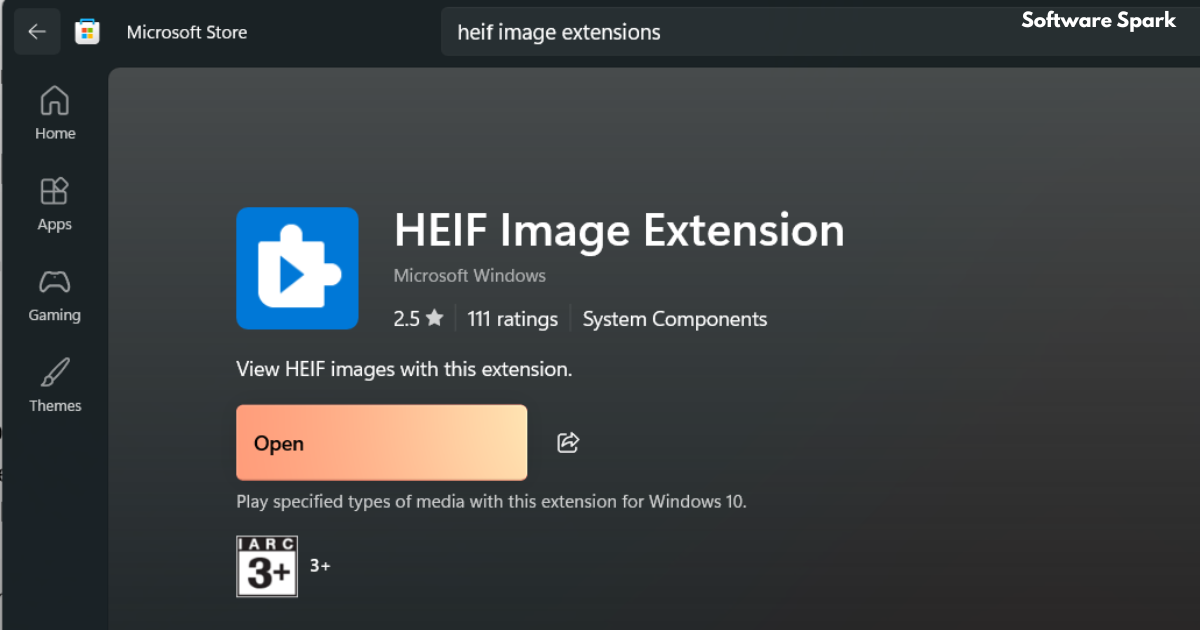
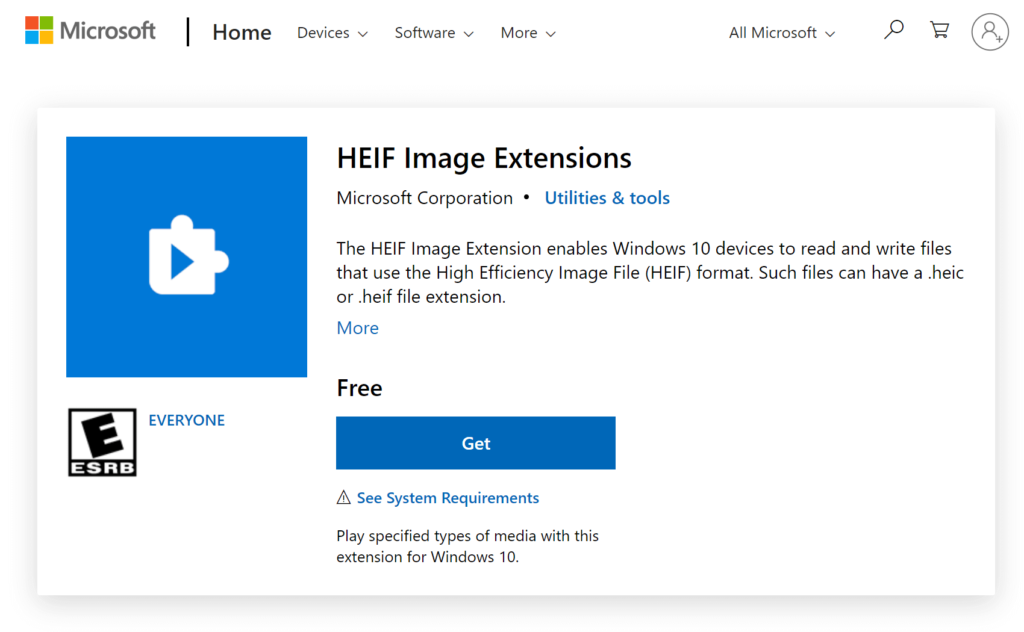
Microsoft solved this by offering the HEIF Image Extensions as a free download from the Microsoft Store. This package enables Windows to read and write HEIF files, including .heic, .hif, and .heif extensions .
How to Install HEIF Image Extensions
Step-by-Step Installation
- Open the Microsoft Store on your Windows 10 or Windows 11 device
- Search for “HEIF Image Extensions”
- Click “Download” or “Install”
- Wait for the installation to complete
The extension should now be active, allowing you to view HEIC files in Photos, Paint, and other Windows apps .
The HEVC Video Extension Requirement
Here’s where it gets a bit complicated: the free HEIF Image Extensions alone may not work for all HEIC files. Because HEIC images use HEVC compression, you may also need the HEVC Video Extensions .
This extension was originally free but now typically costs about $0.99 due to licensing fees Microsoft must pay . While this small cost frustrates some users, it’s a necessary expense for the legal distribution of HEVC codecs .
Important Note: Some Windows versions include basic HEIF support automatically. If you’re using Windows 11 version 22H2 or later, HEIF support may already be built-in, and you might only need the extensions for specific cases .
Alternative Solutions
Convert HEIC to JPEG
If you prefer not to install extensions, you can convert HEIC files to the more universally compatible JPEG format:
- On your iPhone: Go to Settings > Camera > Formats and select “Most Compatible.” This will save future photos as JPEG .
- For existing files: Change your iPhone’s transfer settings to automatically convert photos when sending to a PC:
- Settings > Photos > Transfer to Mac or PC
- Select “Automatic” instead of “Keep Originals”
- Use online converters: Services like iLoveIMG or CloudConvert can convert HEIC to JPEG .
- Third-party tools: Free applications like CopyTrans HEIC for Windows add HEIC support and conversion features .
What to Do If HEIF Image Extensions Don’t Work
Some users report that even after installing both extensions, HEIC files still won’t open. If you encounter this issue:
- Check your Windows version: The extensions require Windows 10 version 17763.0 or later .
- Restart your computer: After installation, a restart may be necessary for the extensions to take effect.
- Try a third-party viewer: Apps like IrfanView with the HEIC plugin can open these files even if the native Windows solution fails .
Frequently Asked Questions (FAQs)
1. What are HEIF Image Extensions?
HEIF Image Extensions are free software packages from Microsoft that enable Windows to read and write HEIF format images, including HEIC files from iPhones. They add support for viewing, editing, and managing these modern image formats in Windows applications like Photos .
2. Are HEIF Image Extensions really free?
Yes, the HEIF Image Extensions are free to download from the Microsoft Store. However, to view all HEIC files, you may also need the HEVC Video Extensions, which typically cost about $0.99 due to licensing fees for the HEVC codec .
3. Why can’t Windows open HEIC files without extensions?
Windows can’t natively open HEIC files because they’re compressed using the HEVC codec, which requires licensing fees. Microsoft provides the extensions as a solution so users can legally access the codec when needed .
4. How do I open HEIC files on older Windows versions?
If you’re using Windows 10 version earlier than 17763.0, the Microsoft Store extensions won’t work. Instead, you can use third-party tools like CopyTrans HEIC for Windows (free for personal use) or convert HEIC files to JPEG using online converters .
5. What’s the difference between HEIF and HEIC?
HEIF (High Efficiency Image File Format) is the overall format standard. HEIC is the specific file extension used for HEIF images compressed with HEVC, particularly on Apple devices. Think of HEIF as the format and HEIC as the file type .
Conclusion
The HEIF Image Extensions serve as an essential bridge between the modern HEIC format and the Windows ecosystem. While the need to install separate extensions might seem inconvenient, it’s a small price to pay for the benefits of HEIF: dramatically smaller file sizes, superior image quality, and advanced features that JPEG simply can’t match.
As HEIF continues to gain adoption—now supported by Android, major camera manufacturers like Canon and Nikon, and integrated into modern operating systems—understanding how to access these files becomes increasingly important .
Whether you choose to install the HEIF Image Extensions, use a third-party viewer, or convert to JPEG, you now have the knowledge to handle any HEIC file that comes your way. The format may be the future of photography, and with these solutions, Windows users can be part of that future too.



