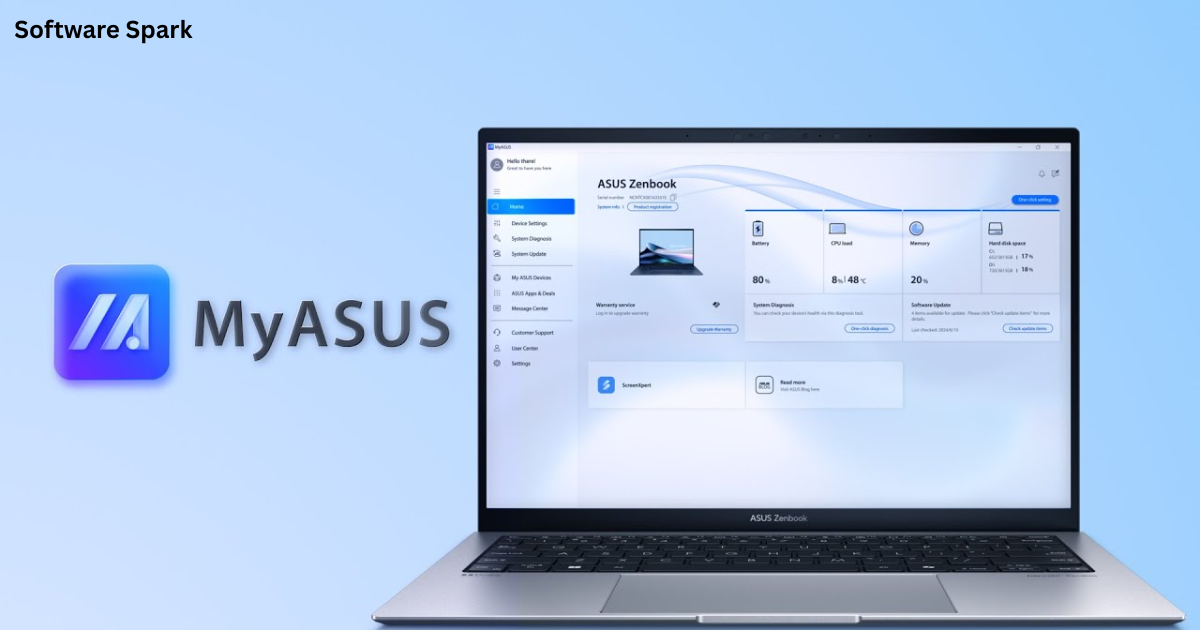
MyASUS for Windows- ASUS System Management Software
Meta Description: Explore the MyASUS app for Windows—a free utility that simplifies driver updates, system diagnostics, battery care, and performance tuning for your ASUS laptop or PC.
Introduction
In the world of personal computing, keeping your laptop running smoothly often means juggling multiple tools—driver update utilities, system optimizers, support portals, and more. For ASUS users, the MyASUS application (version 4.2.59.0) aims to consolidate all these functions into a single, free software package. As a comprehensive system management tool, it promises to make routine maintenance and performance tuning accessible to everyone, from tech novices to seasoned power users.
This guide will walk you through everything MyASUS has to offer, from its core features like diagnostic checks and driver updates to its more advanced capabilities like battery health monitoring and cross-device integration with your smartphone. We’ll also discuss its potential drawbacks, installation process, and alternatives, helping you decide if MyASUS deserves a spot in your Windows 10 or 11 system tray.
What is MyASUS for Windows?
At its core, the MyASUS application is a free utility software developed by ASUS to serve as a command center for ASUS-branded computers and laptops. It moves away from the fragmented approach of using separate tools for different system needs, instead gathering everything into a single, user-friendly interface.
Think of it as the central dashboard for your ASUS device. Instead of hunting through the Windows Control Panel, scouring the ASUS website for driver downloads, or relying on third-party optimizer tools, you can perform most of these tasks directly from MyASUS. It’s designed to be proactive, often providing notifications and quick actions when it detects an issue or an available update.
Key Features and Benefits
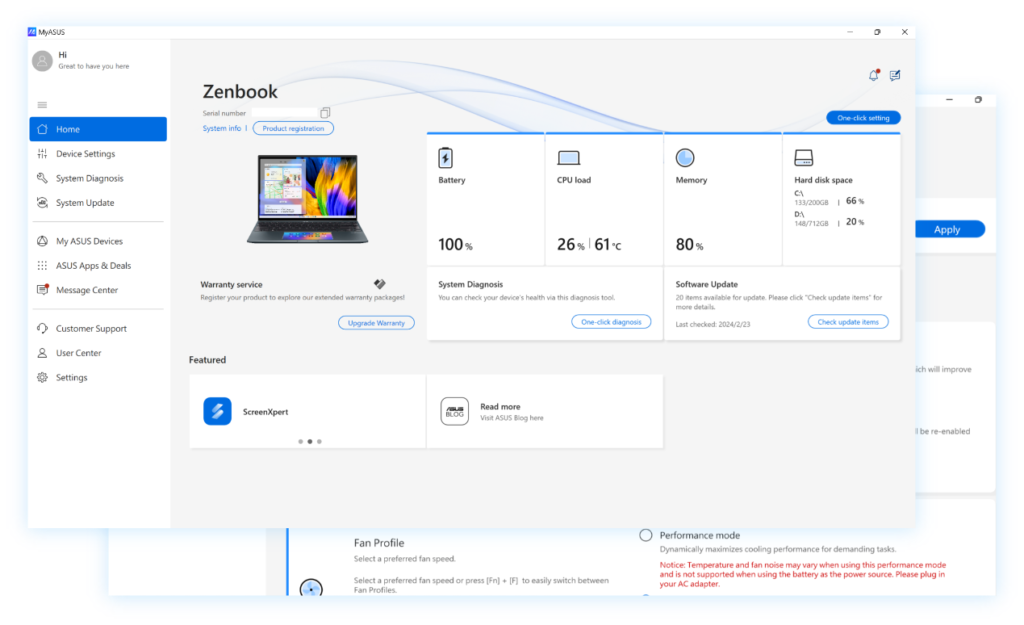
MyASUS packs a surprising amount of functionality into one package. Let’s break down its main components.
1. Simplified System Diagnostics
One of the most practical features is the built-in system diagnostics tool. This scans your hardware components—such as the CPU, RAM, storage drives, and battery—to check for potential problems. It can identify issues like failing hard drives or memory errors, giving you a heads-up before a minor problem becomes a critical failure.
2. Centralized Driver and BIOS Updates
Manually updating drivers is a task that many users avoid. MyASUS simplifies this by checking your system against ASUS’s servers for the latest drivers for your specific model. It lists all available updates for components like the audio chipset, graphics card, wireless adapter, and even the system BIOS. The one-click download and installation process is a significant time-saver.
3. Battery Health Monitoring and Management
Laptop batteries have a finite lifespan, and their performance degrades over time. MyASUS provides detailed information on your battery’s health and charging habits. It offers different charging modes to prolong battery life, such as limiting the maximum charge to 60% or 80% for users who primarily keep their laptops plugged in, which is a scientifically proven way to extend battery longevity.
4. Customizable Performance Settings
Depending on your ASUS model, MyASUS can give you access to performance profiles. These allow you to quickly switch between settings optimized for different scenarios, such as:
- Performance Mode: For demanding tasks like gaming or video editing (may require a power connection)
- Balanced Mode: The standard profile for everyday use, balancing performance and battery life
- Silent/Whisper Mode: For quiet operation during meetings or study sessions by reducing fan noise and power consumption
- Custom Fan Profiles: On some models, you can even adjust fan curves to fine-tune cooling and noise levels.
5. Seamless Smartphone Integration (“Link to MyASUS”)
One of the more modern features is the “Link to MyASUS” function. This bridges the gap between your Windows PC and your Android or iOS smartphone.
- File Transfers: Wirelessly share files, images, and documents between your phone and your ASUS PC.
- Hands-Free Calling: Make and receive phone calls directly through your computer’s speakers and microphone.
- Screen Mirroring: Cast your phone’s screen onto your laptop for presentations or managing apps on a larger display.
6. Direct Access to Customer Support
Troubleshooting hardware or software issues can be frustrating. MyASUS provides a built-in support portal with links to ASUS FAQs, online chat, and service request forms. This streamlines the process of finding help or getting an RMA (Return Merchandise Authorization) for repairs.
Pros and Cons of Using MyASUS
Like any software, MyASUS has its strengths and weaknesses.
Pros
- Convenience: Everything you need is in one place, eliminating the need for multiple utilities.
- User-Friendly: Designed with a clear, intuitive interface that simplifies complex tasks.
- Essential Maintenance: Regular driver and BIOS updates are crucial for security and performance, and MyASUS makes it easy.
- Battery Life Optimization: The charging limit feature can significantly extend your battery’s lifespan.
- Cross-Device Features: The smartphone link is a valuable modern productivity tool.
Cons
- Customer Support Challenges: The built-in support is convenient, but some users report that the actual service from ASUS can be slow or unhelpful.
- Interface Complexity for Beginners: While generally intuitive, the sheer number of features can be overwhelming for some users who just want a simple driver update.
- Pre-installed Bloatware Concerns: MyASUS sometimes comes pre-installed on new ASUS systems, alongside other software that users may consider unnecessary. However, as a utility, it is more functional than typical bloatware.
- Requires Specific Hardware: The advanced performance and fan controls are only available on compatible ASUS laptop models.
How to Download, Install, and Use MyASUS
Installation Steps
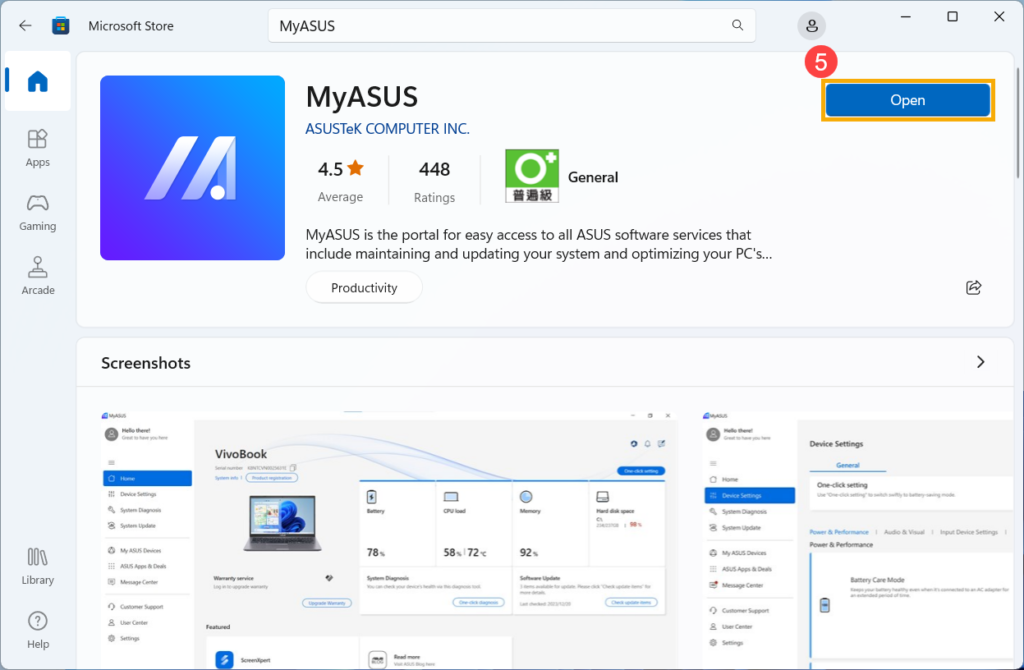
MyASUS is often pre-installed on new ASUS laptops. If not, you can download it from the official Microsoft Store or reputable software libraries like CNET Download.
Steps to Install:
- Check Compatibility: Ensure your ASUS computer runs Windows 10 or Windows 11.
- Download: Visit a trusted source (like the Microsoft Store or the official ASUS support website) to get the latest version.
- Run the Installer: Launch the downloaded file and follow the on-screen prompts to complete the installation.
- Launch and Setup: After installation, open the app. It will usually detect your ASUS device model and provide a quick tour or options on first launch.
Getting Started with Key Features
Checking and Updating Drivers
- Open MyASUS and navigate to the “Driver & Tools” section.
- Click on “Check for Updates.”
- The tool will scan and list any available driver or BIOS updates.
- Select the ones you want to install (or select “Update All”) and follow the instructions. Your system may need to restart.
Using Battery Care
- Go to the “Battery Health” section (sometimes called “Power & Battery”).
- You can view the current health status of your battery.
- Find the “Charging Mode” or “Battery Care” setting. Choose a mode:
- Full Capacity Mode: Charges to 100%, ideal for mobile use.
- Balanced Mode: Charges to around 80% for everyday use.
- Maximum Lifespan Mode: Charges to 60%, best for users who keep their laptop plugged in most of the time.
Adjusting Performance Settings
- Look for the “Performance & Fan” section.
- Select your desired profile (e.g., Windows, Performance, Silent).
- The changes will apply immediately, adjusting power draw and fan speed.
Linking to Your Smartphone
- On the main screen, find the “Link to MyASUS” icon.
- Download the corresponding app on your smartphone from the Google Play Store or Apple App Store.
- Scan the QR code displayed on your PC screen to pair the two devices.
Troubleshooting Common MyASUS Issues
Problem: App Crashes or Won’t Load
- Solution: Restart your computer. If the problem persists, try resetting the app through Windows Settings > Apps > MyASUS > Advanced Options > Reset. If that fails, reinstall the app from the Microsoft Store.
Problem: No Updates Found
- Solution: Ensure you have a stable internet connection. Sometimes, the server can be busy; try checking again later. Also, confirm that you are in the correct section—some models have separate tabs for “Important Updates” and “Latest Updates.”
Problem: Some Features (like Fan Control) are Missing
- Solution: Advanced features like fan profiles are hardware-dependent. If your laptop doesn’t have a compatible motherboard or cooling system, these options will not appear in the software. The app automatically hides features your hardware doesn’t support.
Problem: Link to MyASUS Not Connecting to Phone
- Solution: Ensure both devices have Bluetooth and Wi-Fi enabled and are on the same network. Check that the app on your phone is up-to-date. Try restarting both devices and re-pairing them by scanning the QR code again.
Frequently Asked Questions (FAQs)
1. What is MyASUS for Windows?
Answer: MyASUS is a free utility application designed for ASUS computers and laptops. It serves as a central hub for managing your device, offering features like driver and BIOS updates, system diagnostics, battery health monitoring, performance settings, and even integration with your smartphone.
2. Is the MyASUS app necessary for my ASUS laptop?
Answer: While not strictly necessary for the laptop to function, it is highly recommended. MyASUS simplifies essential maintenance tasks like keeping drivers up-to-date, which is crucial for security and system stability. It also provides valuable tools to manage battery health and optimize performance, making it a worthwhile addition.
3. How do I update my drivers using MyASUS?
Answer: Open the MyASUS application, navigate to the “Driver & Tools” or “System Update” section, and click “Check for Updates.” The tool will scan for available drivers, firmware, and BIOS updates for your specific ASUS model. You can then select individual updates or click “Update All” to install them.
4. What does the Battery Care function do in MyASUS?
Answer: The Battery Care function allows you to manage your battery’s health. It provides information on the battery’s status and lets you choose different charging modes. By limiting the maximum charge (e.g., to 80% or 60%), you can significantly extend the overall lifespan of your laptop’s battery.
5. Why is my MyASUS app not working or showing features?
Answer: There could be several reasons. The app might need a fresh install or a system restart. If specific features like fan controls or performance profiles are missing, it’s likely because your laptop’s hardware doesn’t support them. Additionally, check for updates to the app itself from the Microsoft Store.
MyASUS vs. Alternatives
While MyASUS is an excellent tool for ASUS users, it’s worth knowing what alternatives exist if you are looking for a specific function.
- ASUS System Control Interface (ASUS SCI): This is a lower-level driver that provides the foundation for many of MyASUS’s features. It’s automatically installed with MyASUS.
- Third-Party Driver Update Tools (e.g., Driver Booster, Snappy Driver Installer): These are generic tools that can update drivers for any computer. However, they often include bloatware or require payment for full features. They also might not have the specific, model-optimized drivers that ASUS provides for its own hardware.
- Other Manufacturer Software (e.g., Lenovo Vantage, Dell SupportAssist): These are similar utility apps but are designed for other brands and won’t work on an ASUS PC. MyASUS is specifically tailored for ASUS hardware and offers unique features like the smartphone link.
For most users, MyASUS remains the most reliable and integrated option for managing an ASUS device, as it is specifically designed to work with the hardware’s unique functionalities.
Conclusion
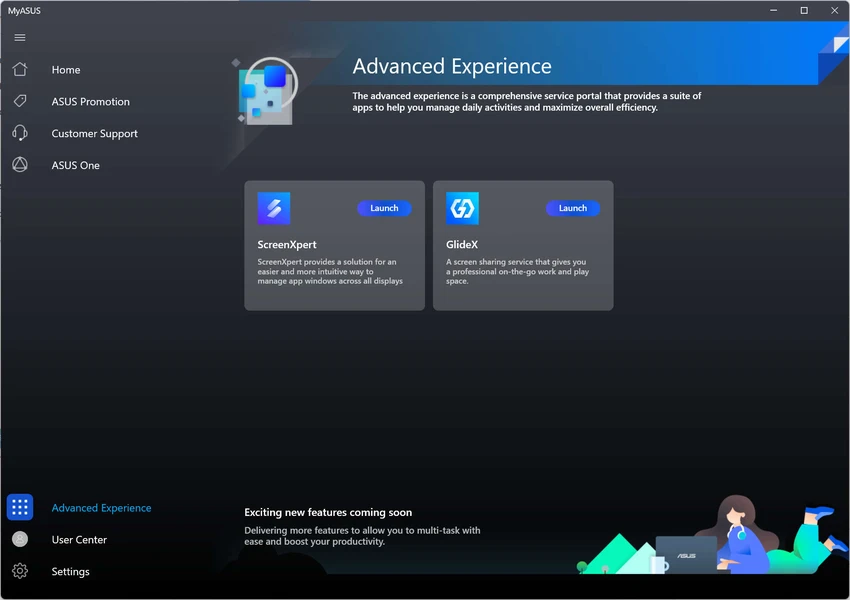
The MyASUS application is more than just another pre-installed utility; it is a comprehensive and practical toolbox for managing your ASUS Windows laptop or PC. By bringing together essential functions like driver updates, system diagnostics, battery care, and performance tuning into a single, accessible interface, it simplifies PC maintenance for users of all skill levels.
While it has some drawbacks, such as potential interface complexity and reports of inconsistent customer support, its core benefits are substantial. The ability to extend battery life through intelligent charging management, ensure system stability with automated updates, and even connect your smartphone for seamless productivity makes MyASUS a valuable asset for any ASUS device owner.
Take the time to explore its features, configure your battery and performance settings to match your usage habits, and you’ll likely find that MyASUS helps keep your system running healthier and more efficiently for years to come.



